

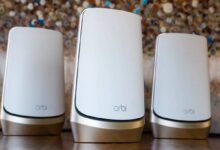
The Netgear Orbi mesh Wi-Fi system is one of the top choices for whole-home wireless coverage. But like any networking device, it’s not immune to occasional glitches, unresponsiveness, or connectivity issues.
When your Orbi router fails to perform reliably—even after trying general troubleshooting steps—a factory reset Orbi router may be necessary. This guide covers everything you need to know, including:
- Why and when to reset your Orbi router
- Methods: Physical reset button, Orbi app, web interface, and WPS
- What to do after the reset
- FAQs and best practices
Whether you’re a beginner or a tech-savvy user, this detailed guide will help you reset your Orbi router step-by-step without stress.
What Is a Factory Reset?
A factory reset restores your Orbi router to its original default state—exactly how it was when you first unboxed it.
It will:
- Erase custom settings (SSID, passwords, parental controls, port forwarding, etc.)
- Remove all device connections
- Revert admin credentials to factory defaults
A reset does not remove firmware updates, but it does require you to reconfigure your Wi-Fi network.
When Should You Reset Your Orbi Router?
Not every issue requires a factory reset. However, consider resetting your Orbi router if you encounter:
- Router is unresponsive or frozen
- Internet keeps disconnecting randomly
- Unable to access router settings (even after rebooting)
- Wi-Fi devices can’t connect or get incorrect IP addresses
- Forgotten router admin password or Wi-Fi credentials
- Advanced troubleshooting hasn’t worked (e.g., DNS flush, firmware update)
Pre-Reset Checklist
Before resetting your Orbi router:
- Backup your settings via the web interface (if possible)
- Make sure the router is powered on and stable
- Disconnect unnecessary connected devices
- Keep a paperclip or SIM ejector tool nearby (for the reset button)
- Know your login credentials or default admin info
How to Reset Orbi Router: Four Proven Methods
Method 1: Reset Using the Physical Reset Button
Time Required: ~5 minutes
Difficulty: Easy
When to Use: Router is accessible but unresponsive
Steps:
- Locate the Reset Button: Find the small, recessed reset button—usually at the back of the router near the power port.
- Power On the Router: Ensure the router is plugged in and powered on.
- Press and Hold for 10 Seconds: Use a paperclip or pin to press the reset button. Hold for 10 seconds until the power LED blinks amber or white.
- Wait for Reboot: Release the button and wait 2–3 minutes for the router to reboot and complete the reset process.
- Reconnect & Reconfigure: Log into your Orbi using the default IP address (usually
192.168.1.1) and configure your network settings.
Method 2: Reset Using the Orbi Mobile App
Time Required: ~5–10 minutes
Difficulty: Easy
When to Use: If router is functional but not physically accessible
Steps:
- Download the Orbi App: Install the official Netgear Orbi app from the Apple App Store or Google Play Store.
- Connect to Orbi Network: Make sure your smartphone is connected to the Orbi WiFi network.
- Login to Admin Account: Enter your admin credentials to access the dashboard.
- Navigate to Advanced Settings: Tap Settings > Advanced > Administration > Factory Reset.
- Confirm and Reset: Confirm the reset. The app will begin resetting the router and restart it automatically.
Method 3: Reset Through the Orbi Web Interface
Time Required: ~5–7 minutes
Difficulty: Intermediate
When to Use: Orbi app unavailable or unsupported model
Steps:
- Connect to Orbi WiFi: Use your PC/laptop and connect to the router via Ethernet or wireless.
- Open a Web Browser: Go to
http://192.168.1.1orhttp://orbilogin.com. - Enter Admin Login Details: Default username:
adminand Default password:password(unless changed) - Access Reset Option: Go to Advanced > Administration > Backup Settings.
- Click “Erase” or “Factory Reset”: Confirm and let the router reset.
Method 4: Reset Orbi Router via WPS Button
Time Required: ~5 minutes
Difficulty: Moderate
When to Use: Reset button is damaged or non-functional
Steps:
- Find the WPS Button: Typically located on the back or underside of the router.
- Press and Hold: Press and hold the WPS button for 15–20 seconds.
- Watch the LED: Wait for the power LED to flash red or white. Release the button.
- Wait for the Reset to Complete: The router will reboot and return to factory settings.
What to Do After Resetting the Orbi Router
After your router resets successfully:



Reconfigure Router Settings
- Connect to Orbi’s Default WiFi Name (SSID): Use the SSID and password on the router label.
- Log into the Web Interface or App: Follow setup prompts to create a new WiFi name and admin credentials.
- Update Firmware: Always update to the latest firmware for improved performance and security.
- Reconnect Devices: Manually reconnect smart devices, laptops, TVs, and smartphones to the new network.
- Restore Settings (If Backed Up): If you created a backup earlier, restore it through Advanced > Administration > Restore Settings.
Final Thoughts
A properly executed reset can breathe new life into your Orbi router and resolve stubborn issues that regular troubleshooting can’t fix. Whether you’re dealing with unstable internet, login issues, or forgotten credentials, resetting your Orbi router is often the most effective solution.
Make sure to follow the right reset method for your setup and take time to reconfigure your network for peak performance.