
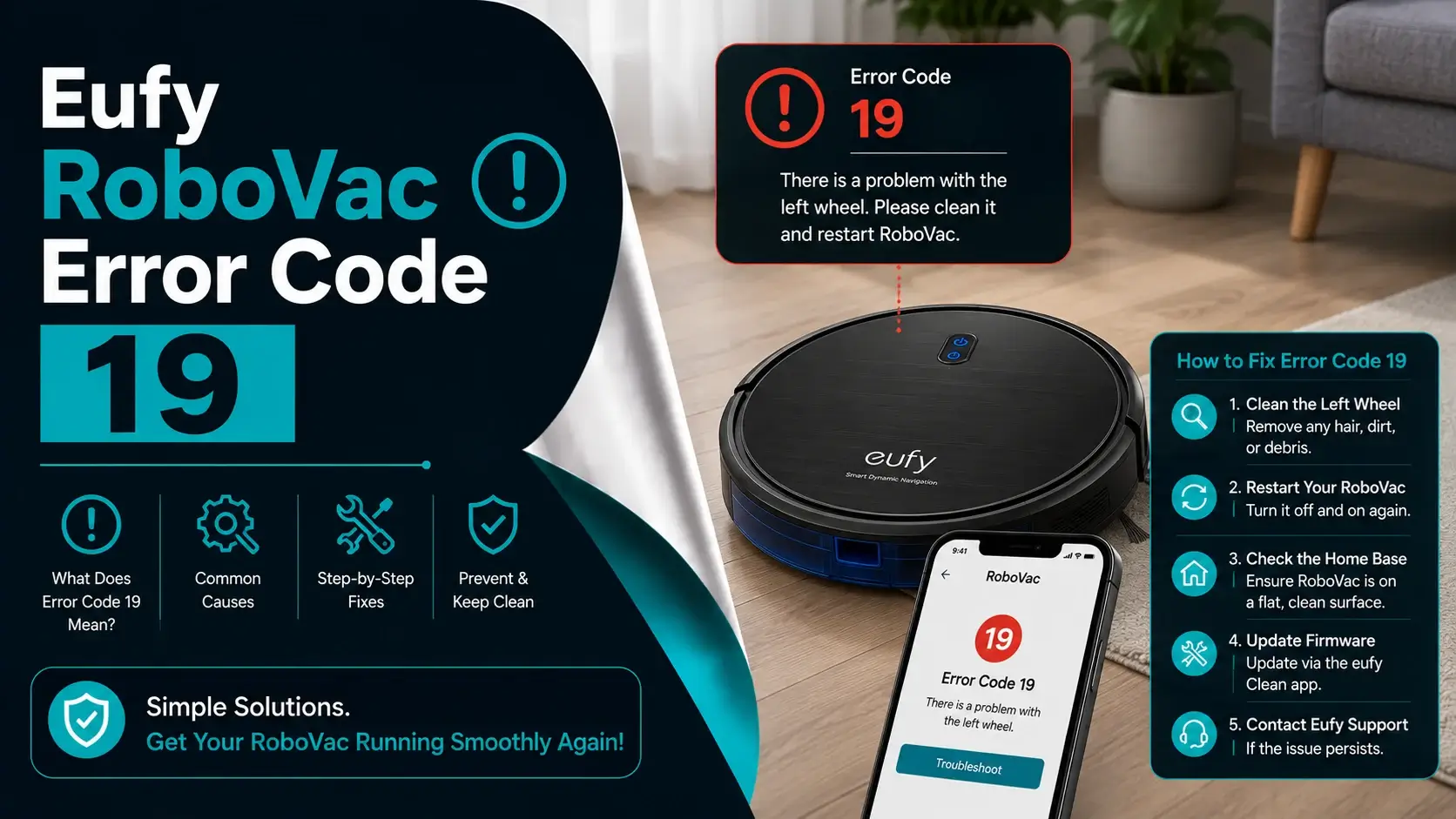
If you have ever come home expecting clean floors and instead found your Eufy RoboVac frozen mid-room, blinking with that Error 19 message, and I know you feel. It is like your reliable little robot suddenly decided to go on strike.
When it first happened to me, I thought something was seriously wrong.. The RoboVac stopped moving, the light was flashing, and the app said: “Eufy RoboVac error code 19.”
I took a deep breath, sat down next to it, and started figuring it out. Turns out, it was not nearly as scary as it looked. If you are staring at the same error, before you panic or start googling for replacement parts, let’s walk through what is really happening and how you can fix it easily, step by step, without spending a single rupee or dollar or without using any fancy tools.
What Eufy RoboVac Error Code 19 Actually Means?
Let’s skip the tech jargon and understand the basics first: Error 19 basically means your RoboVac is having trouble moving, usually because the wheels or movement sensors are acting up…
Maybe there is dust blocking something. Maybe it got stuck on the carpet. Maybe it is just having a bad day. When the sensors get sensors get confused about how the wheels are spinning or not spinning, the robot shuts down automatically. Think of it like your RoboVac saying, “Hey, something’s off with how I am rolling. Can you check my wheels, please?”
So, don’t worry. It’s not a “death code.” It is just a little maintenance signal. But sometimes, a firmware glitch or even uneven flooring can trick the sensors into thinking something’s wrong.
Common Reasons: Why It Happens?
After going through this one more time and a few phone calls with Eufy support, I found that Error 19 usually comes down to one of these reasons:
- Dust or lint blocking the wheel sensors: Dust builds up fast, especially if you have pets. Tiny sensors underneath your RoboVac. They are super sensitive. Even a little dust can mess with them.
- Wheels Obstruction: Pet hair, carpet fiber, or threads. It doesn’t take much to jam the axle.
- Carpet edges or Uneven flooring: High carpets, tilted edges, or shiny marble can confuse the sensors, and wheels can lose traction or slip.
- Firmware bugs: Sometimes, the app or the internal software gets stuck in a weird loop.
- Internal Calibration Error: If you move the RoboVac while it is running, it can lose its balance. Picking it up mid-clean can throw off its calibration. It will think it is moving when it is not.
How Can We Fix Eufy RoboVac Error Code 19?
Let’s start with the basics. The steps mentioned below can fix it completely. Try them one by one, and maybe you might not need to go past step two. Now, grab your RoboVac, a soft brush, or a cotton swab, and let’s get things sorted.
Step 1: The Classic Restart Trick
Sometimes, it really is that simple. I know people say “turn it off and on again” for everything, but for smart devices, it’s like giving them a mini nap.
– Here’s what to do:
- Turn off the power switch at the bottom.
- Unplug the charging base.
- Wait about 30 seconds. (Grab a sip of coffee while you wait.)
- Turn it back on and press Start.
If that clears the error, great! You’re done. If not, no stress; keep going.
Step 2: Clean Those Wheel Sensors
This is the most common fix. When I flipped mine over, I found a thin layer of dust and some tiny hair fibers sitting right near the wheel sensors. Barely visible, but enough to confuse the poor thing.
– How to clean them:
- Turn your RoboVac off.
- Flip it over carefully on a towel.
- Look for the tiny black “eyes” near the wheels; those are the sensors.
- Use a dry cotton swab, small brush, or compressed air to clean them gently.
- Spin the wheels by hand to make sure they move freely.
No water, no sprays; just gentle cleaning. Once I did that, the error vanished instantly. I almost didn’t believe it.
Step 3: Untangle the Wheels
Here’s a little secret: half the time, the issue isn’t even the sensors; it’s what’s wrapped around the wheels.
Mine once had a strand of my dog’s fur wound up so tightly that it was invisible at first glance. The motor was trying to spin, but couldn’t.
– Here’s what to check:
- Gently pull the wheels outward and look around the edges.
- Use tweezers to remove any hair or thread.
- Make sure the wheel “bounces” slightly when pressed (that’s the suspension working).
After doing this, both wheels should spin smoothly and feel balanced.
Step 4: Update Your Eufy’s Firmware
Sometimes, error 19 pops up even when there’s nothing physically wrong. That’s when it’s likely a software hiccup.
– Here’s how to update it:
- Open the EufyHome App.
- Tap your RoboVac device.
- Go to Settings – Firmware Update.
- If an update’s available, hit Install.
It’ll take a few minutes, but updates often fix random sensor errors. I once ignored an update for weeks, and right after installing it, my error 19 disappeared for good.
Step 5: Do a Quick Factory Reset
If you’ve tried everything and your RoboVac still insists on throwing error 19 at you, a reset can clear out whatever internal confusion it’s having.
– Here’s how:
- Press and hold the Start/Stop button for 10 seconds.
- When you hear a beep or see the lights flash, release it.
- Wait for it to restart.
- Reconnect it to your app and Wi-Fi.
It’ll forget your cleaning schedule, but it’ll also forget whatever caused the error in the first place, fair trade, right?
Why does this happen so often?
Here’s something I didn’t realize until I started paying attention: the floor itself can trigger errors.
For example, tile dust and fine grit can sneak into the wheel sensors fast, especially during dry seasons.
In the U.S., it’s often plush carpets or pet hair that do the same thing.
If your RoboVac works fine in one room but stops in another, that’s your clue; the surface might be the problem, not the robot.
How Can You Keep Error 19 From Coming Back?
Once you’ve fixed it, the best thing you can do is a bit of preventive care. Here’s what I do every weekend:
Give the wheels a quick brush-off.
- Check for hair wrapped around the brushes or axles.
- Keep the firmware up to date.
- Don’t pick up the RoboVac while it’s running; let it finish and dock first.
- Avoid running it on thick rugs or uneven floors if possible.
It takes maybe five minutes, and it’s saved me a ton of headaches since.
When to Call Eufy Support?
If you’ve done all this and Euyf RoboVac Error code 19 still flashes, there’s a chance the motor or internal board is failing. That’s not common, but it happens.
At that point, reach out to Eufy Support through the app or their website. Give them:
- Your model name (like 11S, G30, or X8).
- The error code.
- A quick description of what you’ve tried.
They’re actually pretty responsive. When a friend’s RoboVac wouldn’t stop throwing the same error, Eufy replaced the whole unit under warranty; no drama, no hidden fees.
Final Thoughts
Eufy RoboVac Error Code 19 may sound technical, but it simply indicates that your robot vacuum requires some maintenance. A quick cleaning, a reset, or a firmware update is often all it takes to restore normal operation.
Even a small amount of regular care can help keep your smart cleaning device running efficiently. And there’s a certain satisfaction in knowing you resolved the issue on your own and got your RoboVac back to work.