
If you are facing Kindle Fire Error Code 13, you are not alone. This error commonly appears when installing or updating apps on an Amazon Fire tablet, especially apps downloaded through third-party sources or modified app stores. The good news is that Kindle Fire Error Code 13 is fixable with the right steps and does not usually indicate hardware damage.
Kindle fire is an amazing and powerful tool on which you can use various OTT platforms such as YouTube, Netflix, Amazon Prime, Project Free TV, etc. It is also used as a tablet for searching, browsing the internet and for social networking as well.
Well, there are major causes of the error. You need to understand the causes in order to understand the issue. This is the issue that can arise due to the remains on the network, any video, or a third party link in the temporary files.
The issue may also arise due to the fact when you are watching the video, Music, or other multimedia material through a third-party device that might attempt to reach your data or the Wi-Fi link.
When you see that your system faces this error, you cannot stream or go any further. What you can do so try to repair it with any of the fixes mentioned below. You need to follow them carefully in order to resolve Error 13 on Kindle.
What Is Kindle Fire Error Code 13?
Kindle Fire error code 13 is an installation-related error that occurs when the Fire OS operating system blocks an app from being installed or updated. This usually happens due to permission conflicts, corrupted app data, incompatible APK files, or system-level restrictions imposed by Fire OS.
Unlike generic Android tablets, Fire tablets run a customized Android-based operating system known as Fire OS. Because of this customization, Fire tablets handle app installations differently, which increases the likelihood of encountering errors like error code 13.
How to Fix Kindle Fire Error Code 13 (Step-by-Step)
1. Clear the Temporary Data
In order to fix the mistake, the first thing that you need to do is to clean all the temporary data. Then you need to tap more and then select the applications.

Then click on the installed applications, ten on the Amazon video, and then select the option of clear data. After that, you are going to continue loading your pictures and videos effectively but the error will not occur.
– Follow the below steps to fix the cache issue
- Open Settings on your Kindle Fire
- Tap Apps & Notifications
- Select Manage All Applications
- Choose the affected app
- Tap Storage
- Select Clear Cache and Clear Data
- Restart your device and reinstall the app
This removes corrupted temporary files that may trigger Kindle Fire error code 13.
2. Attempt the Force stop and restart the App
If you are still seeing the error, then you need to press more and then choose applications. After that select the option of stop force and press the clear data and then install applications.
If you see that the clear data is out grayed, then you need to return to the clear data. Then press the force stop. Confirm this action and then reset power.



If you see that the error has been gone, then it’s fine, and if you are still facing the Kindle Fire Error Code 13, then follow the steps below.
- Press and hold the Power button
- Tap Restart
- Wait for the device to reboot
- Try installing the app again
A restart clears temporary system glitches that can cause Kindle Fire error code 13.
3. Uninstall the Recently Downloaded Updates and Apps
In this step, you need to check and uninstall any of the apps updates that might have been recently downloaded. You can easily uninstall any of the specific upgrades as compared to the Windows or the Mac.
In order to uninstall all the updates and the traces, you must be able to remove the particular app. What you need to do is to select the home, then apps, and then the device and then keep it before “Remove from device”.
After that, you need to tap this option and then validate the option of the app deletion. You need to wait until the next update, which could be better if you are looking to reinstall only one specific device.
4. Reset the device to the Factory Defaults
When you are not able to resolve the Kindle Error Code 13 and everything else is failing, then you need to back up your kindle fire details and then restore it to the factory settings with help of hard reset of your Kindle device.
You will easily be able to back up your data with the USB and any third-party app which will be free. Then you can access your SD card. All your data will not be saved by the USB storage.
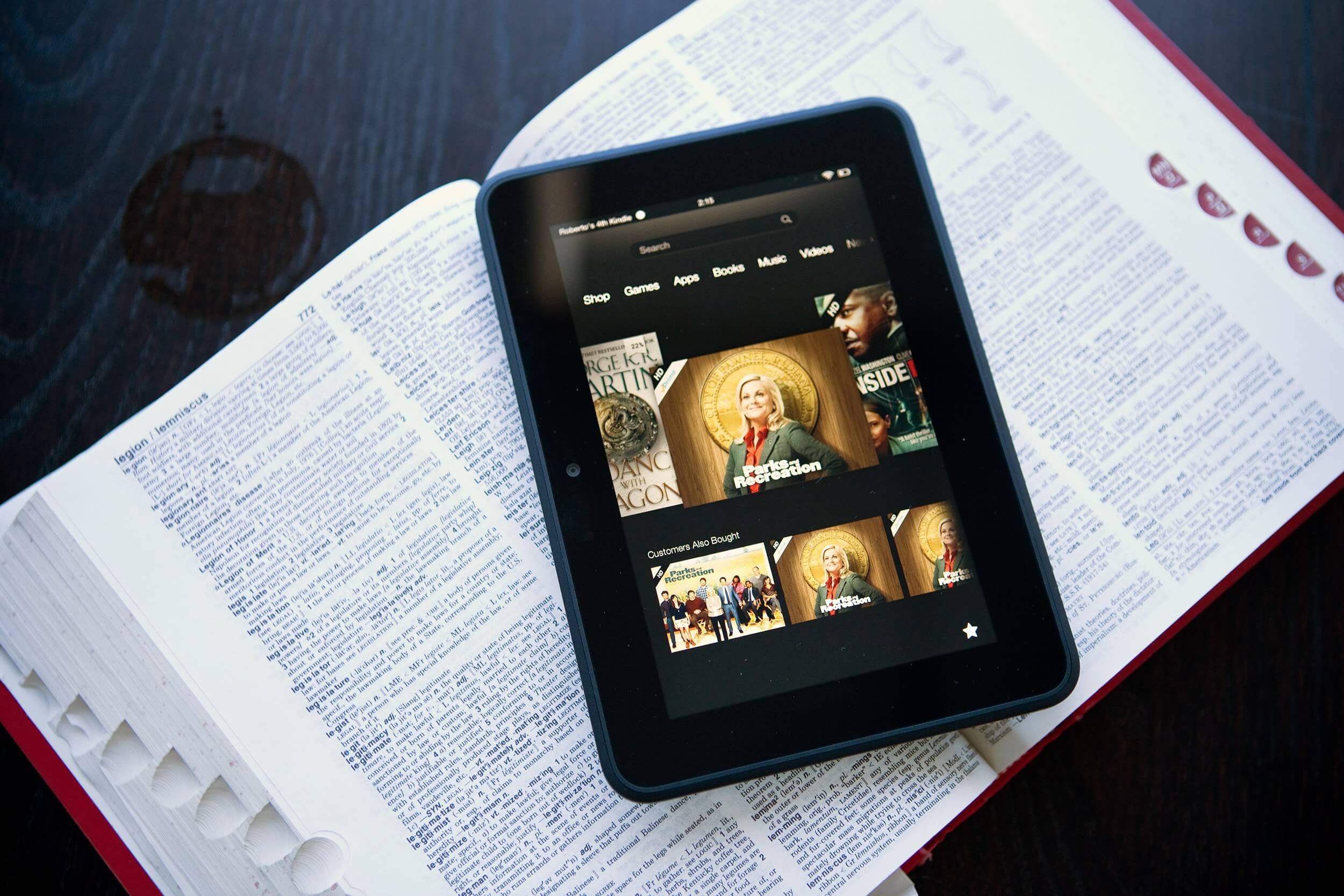
So you need to choose a system in order to back up the data. You need to wait for the process to restore the configuration to the factory.
When you are done with it, then reinstall and recover the applications as well as the games.
– Follow the steps to uninstall the app fully.
- Go to Settings > Apps
- Select the affected app
- Tap Uninstall
- Restart your Kindle Fire
- Reinstall the app from a trusted source
5. Check and Enable App Permissions Manually
Sometimes Fire OS blocks required permissions.
- Open Settings
- Go to Apps
- Select the app
- Tap Permissions
- Enable all required permissions
- Retry installing or updating the app
Permission conflicts are a frequent cause of Kindle Fire error code 13.
6. Update Fire OS to the Latest Version
Outdated software increases compatibility issues.
- Open Settings
- Tap Device Options
- Select System Updates
- Install available updates
- Restart the device
Updating Fire OS improves security, stability, and app compatibility.
7. Install Apps Only from Compatible Sources
Always ensure the app version matches your Fire OS version. Apps designed for newer Android releases may not install correctly.
- Use Fire OS–compatible APK versions
- Avoid modified or cracked apps
- Install one app version at a time
8. Fix Google Play Services Conflicts (Advanced)
If you installed Google Play Store manually, follow this carefully.
- Uninstall:
- Google Play Store
- Google Play Services
- Google Services Framework
- Restart your Kindle Fire
- Install compatible versions in the correct order
- Restart again
Incorrect installation order often causes Kindle Fire error code 13.
9. Boot Kindle Fire into Safe Mode
Safe Mode disables third-party apps.
- Press and hold Power
- Tap and hold Power Off
- Select Safe Mode
- Try installing the app
- Restart normally
If the app installs successfully in Safe Mode, another app is causing the conflict.
9. Check Available Storage Space
Low storage can prevent installations.
- Go to Settings > Storage
- Ensure at least 1–2 GB of free space
- Delete unused apps or files
- Restart and try again
Insufficient storage can indirectly trigger error code 13.
Wrapping up
Kindle Fire Error Code 13 can be frustrating, especially when you’re trying to install essential apps. However, with the right approach—clearing cache, updating Fire OS, managing permissions, and using compatible app versions—you can fix this issue permanently.
If the error persists even after trying all solutions, a factory reset may be considered as a last resort (after backing up your data).