
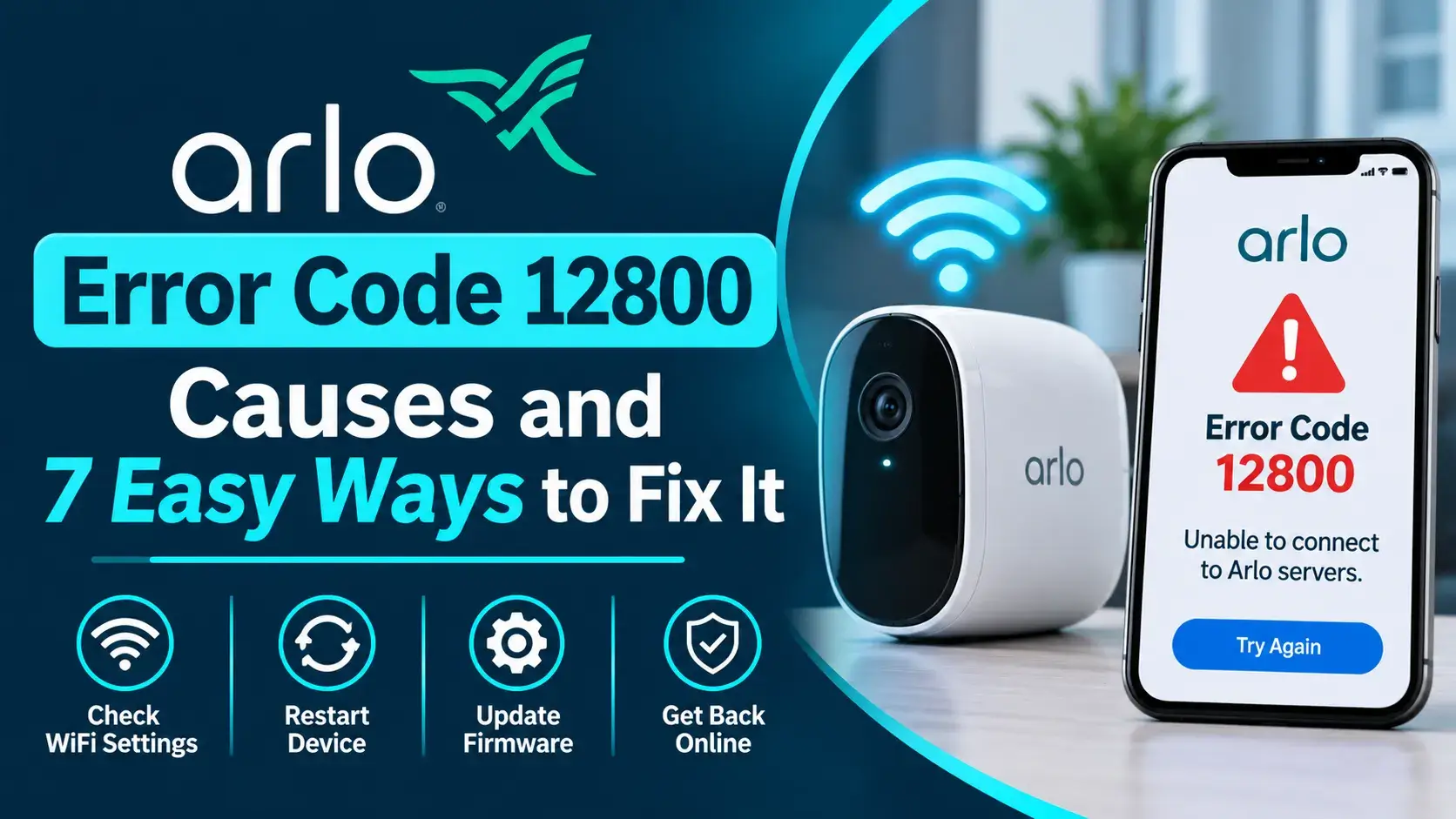
Have you ever seen Arlo error code 12800 when you try to use your Arlo device? You must be wondering if your Arlo device is broken. Don’t worry… the device is not broken at all. Many people buy the device to feel safe and secure, but seeing this error destroys their peace of mind.
You may not know this: You are seeing error 12800 in your Arlo camera because it is not able to connect to Arlo servers. If you are seeing this error for the first time, you may have started browsing for some questions like: “Why is my Arlo camera not connecting?” “What does this Arlo error 12800 mean?”, “Why is the Arlo app not working?”, or “How to fix Arlo connectivity problems? ”
But here is the good news for you: You don’t need to be scared, as it is not a big deal. You can easily fix the error at home, and it does not require any technical knowledge.
Let’s start by clearing some basic doubts of yours…
What does Arlo error code 12800 actually mean?
Before going into the depths of fixing the error, one should first know what they are about to fix before starting to resolve it. You have to understand what exactly this error is. Once you know all the reasons behind the error code, it will become easy for you to solve it in just a few minutes.
If you are seeing Arlo error code 12800, it means:
- Unable to log in to your Arlo account.
- The app will fail to load the Arlo camera feed.
- The Arlo camera will be offline.
- The setup process will stop in the middle.
- You cannot see live video.
- No motion alerts will be received by you.
Facing all these problems during the Arlo setup can feel irritating, especially when your home security completely depends on the Arlo security system.
Let’s now look at some of the common reasons behind this error 12800…
Common Reasons behind Arlo Error Code 12800
After seeing Arlo error code 12800, you want to fix the error immediately. To fix it, you need to know all the culprits that are causing the error. The most important thing you need to know is that there can be one reason behind the error.
Here is a mix of common reasons that cause the error:
- Arlo camera using the 5 GHz Wi-Fi band.
- Entering the wrong Wi-Fi password.
- The device is far from the router.
- Unstable or slow internet connection.
- Using an outdated Arlo app or firmware.
- Temporary glitches in your Arlo device and app
- Using a VPN during the Arlo device setup.
Let’s now talk about troubleshooting steps in the proper way to fix the Arlo error after understanding the real reasons behind the error.
How to Fix Arlo Error Code 12800?
To fix the Arlo error 12800 easily, you need to get to the main point. You need to follow a few simple solutions step by step. Here are some simple and quick fixes for you. You need to follow them and move forward slowly until you fix the error on the Arlo device.
Step 1: Confirm the wrong network band during setup
Using the incorrect network band is one of the common reasons that causes Arlo error 12800. You have to double-check the network band before logging into the Arlo device.
– Verify the correct network band by doing these simple steps:
- Use the correct 2.4 GHz network band.
- Swap immediately to a 2.4 GHz network if you are using a 5 GHz network.
- Disable the 5 GHz band if the Arlo device works on both networks.
- Make a different 2.4 GHz network for the Arlo device.
Step 2: Ensure you are using the Wi-Fi password
If you enter the incorrect Wi-Fi password during setup is one of the most common mistakes that most Arlo users make. This can be a big reason behind error code 12800. You always need to double-check all the Wi-Fi credentials before logging in.
- Enter the correct Wi-Fi credentials.
- Review whether Caps Lock is on or off.
- Check if you are using the Right Arlo account or not.
- Re-enter the Wi-Fi password and details properly if possible.
Step 3: Keep the device and router in the correct range
Placing the device and router far from each other causes plenty of Arlo errors. If you put the router far from the device, you can notice weak Wi-Fi signals. If there are any network drops, it will cause Arlo error code 12800.
– Check the following important points:
- Bring the Arlo doorbell/camera inside your home.
- Position the Arlo devices closer to the router.
- Maintain the distance between the device and the router within 10-15 feet.
- Place the device and router where there will be no network drops.
Step 4: Stabilize the internet connection
To stabilize the internet connection, first confirm that internet services are working properly and there are no glitches in the network. A weak or unstable internet connection is one of the main reasons behind the error.
– Steps to check the stability of the internet connection:
- Immediately switch to a Wi-Fi network when using mobile data.
- Do an internet speed test on any website, such as fast.com.
- You need enough internet speed at home.
- Be closer to the router if needed for the Arlo setup.
Step 5: Update the old app or firmware
Using an old Arlo app or firmware can cause a lot of connection problems for Arlo devices, such as Arlo error 12800. Rather than waiting for any automatic updates, you must do it manually via the Arlo app.
– Follow the steps to update the Arlo app or firmware:
- Visit the official Arlo app.
- Search for any Tap Devices & Cameras.
- Click on Settings.
- Choose the Camera and tap on Firmware.
- Review whether there is a new firmware update for the Arlo camera.
- If the update is available, select the latest version and install it.
Step 6: Reboot the Arlo app and Arlo Device
Restarting any Arlo device can fix many small issues. It is more like a one-for-all solution for many temporary glitches in your device. You have to ensure that you have restarted both the Arlo app and the device.
– To clear the glitches in the device and the app, try these fixes:
- Power off the Arlo app.
- Do a quick restart by unplugging all the cables.
- Wait for at least 1-2 minutes before turning it back on.
- Turn on both the Arlo app and the device.
- Plug all the removed cables back in.
Step 7: Turn off the VPN for no errors
If there is any VPN or firewall running in the background on the phone, then you should turn it off when you are using the Arlo app or device. You should turn off the VPN or firewall services that block the device’s communication with the Arlo servers.
– Things you definitely need to do for VPN:
- Open your mobile’s settings.
- Search the network or connection menu:
- For an iPhone: Go to General, and tap on VPN & Device Management.
- For an Android phone: Tap on Network & Internet or Connections.
- Search for VPN on the screen and tap to check if it’s on.
- Turn the VPN off, and then the switch should be gray.
- Restart the Arlo app and open the Arlo setup again.
Tips to Prevent Arlo error 12800 from happening again
After resolving the Arlo error 12800, it is now the best time to protect the device from the error, as no one wants to face it. You have to follow some simple tips and make it a habit for no future Arlo errors.
Here are some simple tips you must follow:
- Use the correct Wi-Fi band.
- Double-check all the Wi-Fi credentials before entering.
- Always place your device closer to the router.
- Make sure the internet connection is strong enough.
- Keep the Arlo app or firmware updated.
- Make sure the internet connection is strong enough.
- Always try to avoid frequent network switching.
- Restart your Arlo devices frequently.
- Try to avoid any unnecessary VPNs.
Final Words
If you saw an Arlo error code 12800 on the Arlo device. Don’t panic… Your Arlo device is not broken; it just needs some troubleshooting. It is not a big problem at all.
The error happens because of issues with the internet or temporary glitches. You can resolve these issues in just a few minutes by doing the troubleshooting above.