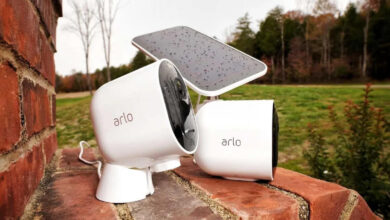

In the 21st century’s connected world, home security has become easier to access than ever. A big thanks to the Arlo security camera, one of the most innovative solutions available.
This device is famous because it is easy to use and gives you reliable performance. One of the amazing things about this device is that its app allows users to monitor their premises from any corner of the world.
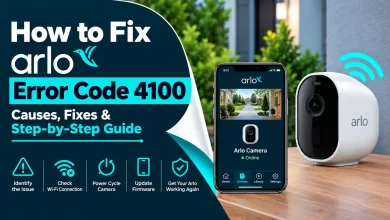
But still, you may have to encounter an Arlo app not working issue.
Undoubtedly, the Arlo surveillance system is the most credible technology. Sometimes, it can also encounter hiccups. The same is true with the Arlo cam.
Presently, there are various users who have reported issues namely – connectivity issues, app crashes, and login difficulties. How frustrating these problems are!
Rest assured!
Once you understand why your Arlo app is not functioning properly, you can fix these issues shortly. This way, you can also ensure the proper and smooth functioning of your security system.
In this comprehensive guide, you will be able to go through all the issues that users confront with their Arlo device’s app.
Let’s keep an eye on the step-by-step solutions that will help you get your Arlo device back up and running quickly as well!
Why Your Arlo App Isn’t Working?
There are several reasons why the Arlo app may suddenly stop functioning properly. Some issues are related to internet connectivity, while others may involve software bugs, outdated firmware, or incorrect device settings. Below are the most common causes of Arlo app problems:
1. Unstable or Slow Internet Connection
The Arlo app heavily depends on a strong and stable internet connection to communicate with your cameras and cloud servers. If your Wi-Fi network is weak, overloaded, or unstable, you may experience:
- Cameras showing offline
- Delayed notifications
- Live feed buffering
- Failed login attempts
- App freezing or loading issues
2. Outdated Version of the Arlo App
Using an older or unsupported version of the Arlo app can cause compatibility problems with the latest devices and servers. Outdated apps often lead to:
- App crashes
- Slow performance
- Login failures
- Security vulnerabilities
- Missing features
3. Arlo Server Outage
Sometimes the problem is not on your side at all. If Arlo’s cloud servers are temporarily down due to maintenance or technical issues, users may experience:

- Failed logins
- Cameras offline
- Missing recordings
- Live streaming interruptions
- Delayed alerts
4. Corrupted App Cache and Data
Over time, temporary cache files stored by the app can become corrupted and interfere with its normal operation. This may result in:
- App freezing
- Random crashes
- Blank screens
- Slow loading speed
- Syncing issues
5. Device Operating System Compatibility Issues
If your smartphone or tablet is running an outdated operating system, the Arlo app may become incompatible. Older Android or iOS versions may fail to support:
- New app updates
- Security features
- Push notifications
- Camera connectivity
6. Incorrect Login Credentials
Entering the wrong email address or password can prevent you from accessing your Arlo account. Common login-related problems include:
- Forgotten passwords
- Expired login sessions
- Typing errors
- Locked accounts after multiple failed attempts
7. Missing App Permissions
The Arlo app requires several permissions to function properly, including:
- Camera access
- Microphone access
- Storage permission
- Location access
- Notification permission
8. Faulty App Installation
Sometimes the app installation itself becomes corrupted due to interrupted downloads or software glitches. This can lead to:
Continuous crashes Failure to launch Missing features Black screens Reinstalling the app usually resolves such issues.
9. Battery Optimization Restrictions
Many smartphones automatically restrict background activity to save battery life. Unfortunately, aggressive battery optimization settings may prevent the Arlo app from:
- Sending notifications
- Running in the background
- Syncing camera activity
10. Firewall or Antivirus Interference
Certain security applications, VPNs, or firewall settings may block the Arlo app from connecting to its servers. This may cause:
- Connectivity errors
- Live streaming failures
- Login issues
- Device syncing problems
Troubleshooting Tips To Get Your Arlo App Back on Track
1. Check Your Internet Connection
A poor or unstable internet connection is one of the most common reasons behind the Arlo app not working issue. Since the Arlo app depends on cloud connectivity, even minor network interruptions can prevent the app from communicating with your cameras properly. This can lead to buffering, offline cameras, delayed notifications, or login issues.
– Steps to Check Your Internet Connection:
- Restart your Wi-Fi router and modem
- Move your phone closer to the router
- Switch between Wi-Fi and mobile data
- Disconnect unused devices from the network
- Run an internet speed test
- Contact your internet service provider if speeds are slow
2. Update the Arlo App
Using an outdated version of the Arlo app can cause several performance and compatibility issues. Older app versions may contain bugs, security problems, or outdated features that interfere with the proper functioning of your Arlo cameras and services.
– Steps to Update the Arlo App:
- Open Google Play Store or Apple App Store
- Search for the Arlo app
- Tap on the “Update” button
- Wait for the installation to complete
- Restart the app after updating
- Enable automatic app updates for future stability
3. Check Arlo Server Status
Sometimes the problem is not with your device or internet connection. Arlo servers may temporarily go down due to maintenance or technical issues. During a server outage, users may experience login problems, offline cameras, delayed recordings, or live streaming failures.
– Steps to Check & Fix the Server Issue:
- Visit Arlo’s official website
- Check Arlo support or service status pages
- Look for outage updates on social media
- Wait until the servers are restored
- Avoid resetting your cameras during outages
4. Clear App Cache and Data
Over time, the Arlo app stores temporary cache files to improve performance. However, corrupted cache data can cause the app to freeze, crash, or load slowly. Clearing the app cache helps refresh the application and removes unnecessary temporary files.
– Steps to Clear App Cache & Data:
- Open your device Settings
- Go to Apps or Application Manager
- Select the Arlo app
- Tap on Storage
- Choose “Clear Cache”
- Tap “Clear Data” if necessary
- Restart the app and log in again
5. Restart Your Smartphone
Temporary software glitches on your smartphone can sometimes interfere with the Arlo app. Restarting the device refreshes background processes and helps eliminate minor bugs that may affect app performance.
– Steps to Restart Your Smartphone:
- Press and hold the power button
- Select the “Restart” option
- Wait for the phone to reboot completely
- Open the Arlo app again
- Check if the issue has been resolved
6. Verify Your Login Credentials
Incorrect login information can prevent you from accessing your Arlo account. Many users accidentally enter the wrong email address or password, especially after changing credentials recently.
– Steps to Fix the Issue:
- Double-check your email address
- Carefully enter the correct password
- Disable Caps Lock while typing
- Use the “Forgot Password” option if needed
- Try logging in from another device
7. Check App Permissions
The Arlo app requires several permissions to work properly on your smartphone. If permissions like camera access, notifications, or storage are disabled, certain features may stop functioning correctly.
– Follow Steps to Check App Permission:
- Open your device Settings
- Navigate to Apps
- Select the Arlo app
- Tap on Permissions
- Enable all required permissions
- Restart the app afterward
8. Reinstall the Arlo App
If the app installation becomes corrupted, reinstalling the app can often solve the problem. A fresh installation removes damaged files and installs the latest stable version of the application.
– Follow the Steps to Reinstall the Arlo App:
- Uninstall the Arlo app from your device
- Restart your smartphone
- Download the app again from the official app store
- Install the latest version
- Log in to your account again
9. Disable Battery Optimization
Battery optimization settings on Android devices can restrict the Arlo app from running properly in the background. This may stop notifications, delay alerts, or disconnect the app from your cameras.
– Steps to Fix the Issue:
- Open your phone Settings
- Go to Battery settings
- Select Battery Optimization
- Find the Arlo app
- Choose “Don’t Optimize” or “Not Optimized”
- Restart the app afterward
10. Check Firewall or Antivirus Settings
Sometimes firewall settings, VPNs, or antivirus software may block the Arlo app from connecting to its servers. This can lead to login errors, syncing problems, or failed live streams.
– Steps to Disable Firewall or Antivirus Settings:
- Disable your VPN temporarily
- Turn off antivirus software briefly
- Check firewall settings
- Open the Arlo app again
- Add the Arlo app to the whitelist (If required)
11. Update Your Device Operating System
An outdated Android or iOS version may become incompatible with the latest version of the Arlo app. Keeping your device updated improves security, stability, and app compatibility.
– Steps to Update Device OS:
- Open your phone Settings
- Tap on Software Update
- Check for available updates
- Download and install updates
- Restart your device after updating
- Launch the Arlo app again
Wrapping-up
The Arlo app not working issue can certainly be frustrating, especially when your home security depends on it. Fortunately, most problems are caused by simple issues like poor internet connectivity, outdated software, corrupted cache, or incorrect settings.
By carefully following the troubleshooting methods explained above, you can quickly restore your Arlo app and continue monitoring your property without interruptions.
Whether your app is crashing, freezing, failing to log in, or showing cameras offline, these fixes can help you resolve the issue efficiently and improve the overall performance of your Arlo security system.
If the problem still persists after trying all the solutions, contacting the experts may be the next best step.
Frequently Asked Questions
Why is my Arlo app not working on my smartphone?
What should I do if my Arlo cameras are not working or showing offline?
A few of them are – verification of the Wi-Fi connection, locating the camera within the range of the router, restarting your security system & networking device, and more. If the issue still persists, you can try to remove and re-add the cameras to your Arlo system.