
The Kindle, Amazon’s popular e-reader, has changed the way millions of people read digital books and documents. With features such as wireless book downloads, cloud synchronization, and Send to Kindle, accessing content is usually quick and convenient.
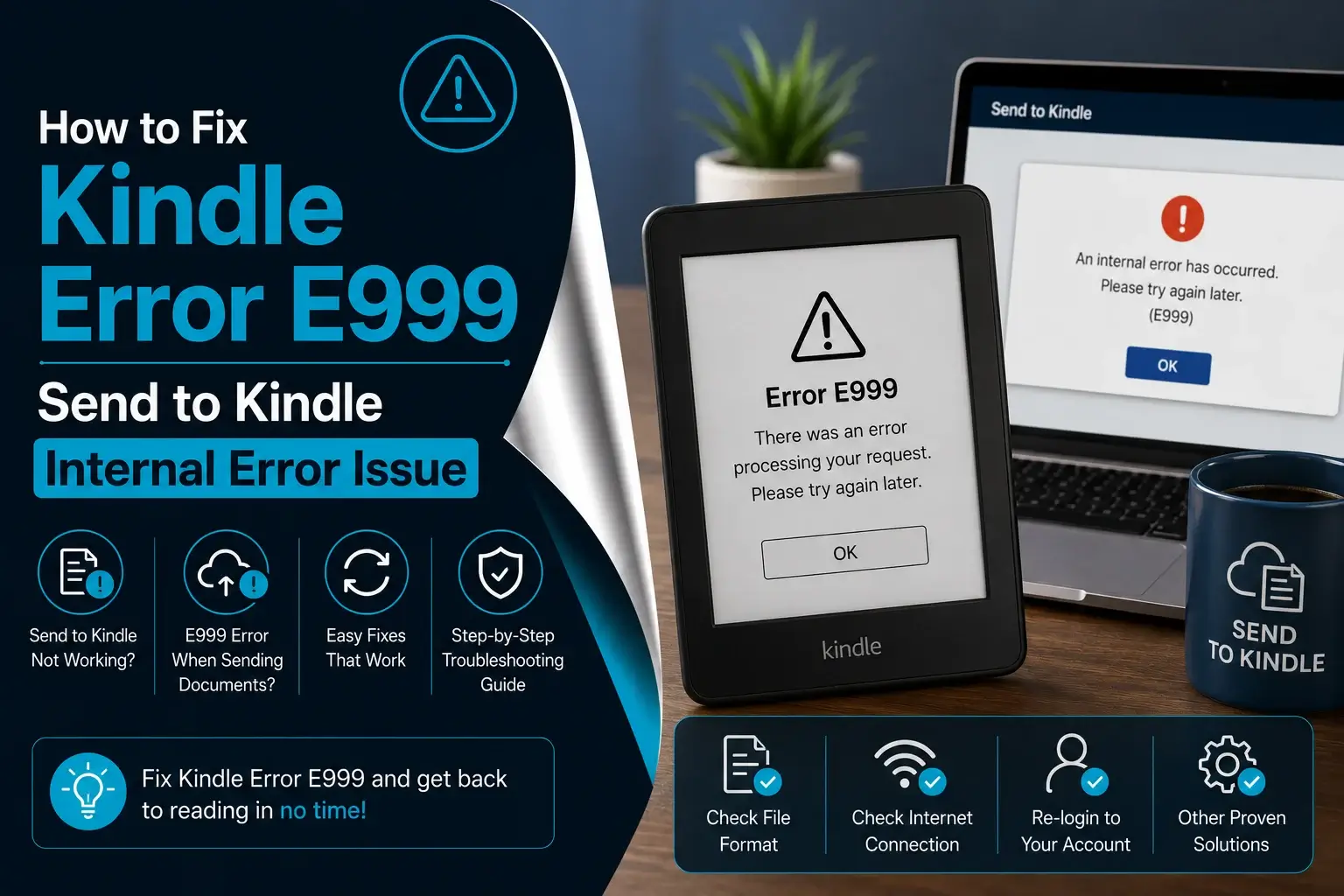
However, like any electronic device or internet-connected service, Kindle can sometimes experience technical problems. One of the errors that can leave users confused is Kindle Error E999. This error may appear when you are trying to download a book, synchronize your Kindle library, access previously purchased content, or send a personal document to your Kindle.
Some users may specifically encounter the message “E999 – Send to Kindle internal error.” Fortunately, an E999 error does not necessarily mean that your Kindle is damaged. The problem may be related to your Wi-Fi connection, Kindle software, Amazon account, a specific document, content synchronization, or a temporary issue with Amazon’s services.
In this guide, we’ll explain what Kindle Error E999 means, what causes it, and how you can troubleshoot the problem step by step.
What is Kindle Error E999?
Kindle Error E999 typically appears when a user tries to download or access content on their Kindle device. It is often described as a “download error,” and it may occur while attempting to sync content, update software, or open a specific eBook. The error message can vary in appearance depending on the Kindle model, but it will usually display a code such as:
- Error E999: Unable to download your content.
- E999: There was a problem with the download.
The key takeaway here is that E999 indicates an issue with downloading or accessing content, and it is often related to internet connectivity, software errors, or issues with Amazon’s servers.
The important thing to understand is that E999 is generally an indication that something went wrong during the content-delivery or processing process.
For example, if you are downloading a book and your Wi-Fi connection disconnects, the Kindle may not be able to complete the download. Similarly, if you are sending a personal document through Send to Kindle and the file cannot be processed correctly, an internal error may occur.
Therefore, the correct solution depends largely on when and where the E999 error appears.
Common Causes of Kindle Error E999
Before we dive into troubleshooting steps, it’s important to understand the common causes of this error. By identifying the root cause, you can apply the appropriate solution more effectively.
1. Unstable Internet Connection
A weak or intermittent Wi-Fi connection is one of the first things you should check. Kindle relies on an internet connection to download books, synchronize your library, receive documents, and communicate with Amazon’s servers.
If the connection repeatedly drops during a download or synchronization, the process may fail and result in an Kindle error E999. Signs that your Wi-Fi connection may be responsible include:
- Downloads repeatedly stopping.
- Books remaining stuck in a downloading state.
- Kindle frequently disconnecting from Wi-Fi.
- Other devices on the same network also experiencing slow internet.
- The problem disappearing when you use another Wi-Fi network.
2. Temporary Amazon Service Problems
Sometimes your Kindle is working correctly and the problem is on Amazon’s side. Kindle depends on Amazon’s online infrastructure for content delivery, account authentication, synchronization, and Send to Kindle processing.



A temporary service interruption or technical problem can therefore cause content-related errors. If several books or documents suddenly stop downloading at the same time, it may be worth waiting and trying again later rather than making major changes to your Kindle.
3. Outdated Kindle Software
Kindle devices receive software updates that can improve performance, fix bugs, and address compatibility issues.
If your Kindle has not been updated for an extended period, outdated software may contribute to synchronization or download problems.
Keeping your device updated is therefore an important part of preventing recurring Kindle errors.
4. Corrupted or Incomplete Content
If E999 occurs with only one particular book, document, or file, the content itself may be the problem.
A download that was interrupted or completed incorrectly may leave a damaged local copy on your Kindle. When the device attempts to open or process that content, an error can occur.
5. Problems With Send to Kindle Documents
Users searching specifically for E999 – Send to Kindle internal error may be dealing with a personal document rather than a purchased Kindle book.
Send to Kindle processes documents before delivering them to your Kindle. Problems with the document itself can sometimes interfere with this process. Possible causes include:
- A damaged file.
- An unsupported format.
- Unusual document formatting.
- An excessively large file.
- Problems with embedded fonts, images, or other document elements.
- A temporary document-processing issue.
- An account or delivery problem.
6. Amazon Account Problems
Your Kindle needs to be correctly associated with your Amazon account to access purchased content and receive documents.
If there is an authentication or synchronization problem with your account, Kindle content may not download properly.
This can sometimes happen after changing account information, switching accounts, or experiencing a registration problem.
7. Kindle Registration Issues
If your Kindle is not properly registered to the correct Amazon account, the device may have difficulty synchronizing your library or receiving content.
In these situations, refreshing the device registration can sometimes resolve the problem.
How to Fix Kindle Error E999
Now that we’ve identified some of the possible causes of Kindle Error E999, let’s move on to the troubleshooting process. Here are several methods you can try to resolve this error:
1. Check Your Wi-Fi Connection
Start by checking whether your Kindle has a stable internet connection. Go to the Wi-Fi settings on your Kindle and confirm that it is connected to the correct network.
Then try the following:
- Move closer to your Wi-Fi router.
- Turn Wi-Fi off and back on.
- Restart your router.
- Check whether other devices can access the internet.
- Connect your Kindle to another Wi-Fi network if possible.
After reconnecting to a stable network, try downloading the book or sending the document again. If the problem disappears on another network, your original internet connection was likely contributing to the E999 error.
2. Update Your Kindle Software
Make sure your Kindle is running the latest software available for your device. Connect your Kindle to a stable Wi-Fi network and open Settings. Depending on your Kindle model, the software update option may appear under Device Options or another device-management section.
If an update is available, install it and allow the Kindle to restart. After the update is complete, reconnect to Wi-Fi and try the download or Send to Kindle process again.
– Why software updates matter:
- Software bugs
- Compatibility problems
- Synchronization issues
- Connectivity problems
- Other unexpected Kindle behavior
3. Restart Your Kindle
A simple restart can resolve temporary software glitches and connectivity problems. If your Kindle is responsive, use the power menu to restart the device.
If the device is frozen or unresponsive, many Kindle device can be restarted by holding the power button for approximately 40 seconds. After the Kindle restarts:
- Connect it to Wi-Fi.
- Wait for the connection to stabilize.
- Open your Kindle library.
- Try downloading the content again.
4. Delete and Re-download the Problematic Book
If Kindle Error E999 occurs with only one particular book, try removing its local copy from the device. Look for the affected title in your Kindle library and select the option such as Remove from Device.
Then download the book again from your library. This creates a fresh local copy and can resolve problems caused by an incomplete or corrupted download.
If the same book fails repeatedly while other books download normally, the issue may be associated with that particular title or its delivery rather than your Kindle’s Wi-Fi connection.
5. Sync Your Kindle Device
If your Kindle library is not updating correctly, manually syncing the device may help. Depending on your Kindle model and software version, look for Sync or Sync My Kindle in the menu.
Synchronization allows your Kindle to communicate with your Amazon account and update information about your content. After synchronization finishes, check your library and try downloading the affected content again.
- Manually Sync : Go to the Kindle’s home screen, tap the “Menu” button, and select “Sync My Kindle.” This will trigger a sync and attempt to resolve any errors related to downloading or content access.
6. Check Your Amazon Account
Ensure that your Amazon account is in good standing. If your payment information is outdated, or if there are any issues with your Amazon account (such as a hold on the account), it may prevent content from downloading properly.
- Log into Your Amazon Account : Check your account status by logging into Amazon’s website or app. Make sure your payment methods are updated and your account doesn’t have any restrictions.
- Check Your Kindle Content : Ensure that the content you’re trying to download is available in your account, and check for any issues related to DRM or content rights.
7. Fix E999 – Send to Kindle Internal Error
If the error specifically appears while using Send to Kindle, the troubleshooting approach is slightly different. The first thing to determine is whether the problem affects one document or every document.
– Try sending another document:
Send a small, simple document that you know is valid. If the second document works, the original file is likely causing the problem.
If multiple different documents produce the same E999 error, the issue may instead involve your account, connection, browser, or Amazon’s document-processing service.
– Check the File Format:
Make sure the document is in a format supported by the Send to Kindle service. If you are having trouble with a PDF or another document type, consider converting the file to EPUB or another appropriate supported format and then try sending the new version.
A clean conversion can sometimes remove formatting or structural problems that prevent a document from being processed correctly.
– Simplify the File Name:
Although filenames are not always responsible for Send to Kindle errors, simplifying the filename is an easy troubleshooting step.
For example, instead of using a filename containing many symbols, brackets, or special characters, use something simple such as:
- MyBook.pdf
Then try sending the file again.
– Check the File Size:
If your document is unusually large, processing may take longer and may be more susceptible to upload or processing problems.
If practical, reduce the document size or divide a very large document into smaller sections. Then attempt to send the smaller file.
– Try Another Browser:
If you are using Send to Kindle through a web browser and the upload fails, try another supported browser. You can also:
- Close and reopen the browser.
- Sign in to Amazon again.
- Clear temporary browser data.
- Disable browser extensions that may interfere with uploads.
- Try the upload from another device.
8. Check Your Kindle Registration
Registration problems can interfere with Kindle content delivery. To check your registration, open your Kindle’s Settings and look for the account or registration section.
If necessary, you can deregister the device and then register it again using the correct Amazon account. However, this should generally be considered a later troubleshooting step rather than the first thing you try.
Before deregistering, make sure you know the login credentials for the Amazon account associated with your Kindle. After registering again:
- Connect the Kindle to Wi-Fi
- Allow it to synchronize
- Open your library
- Try downloading the affected content again
9. Try Send to Kindle From Another Device
If you are receiving E999 – Send to Kindle internal error from a computer, try the same document from another device. For example, if the upload fails on your computer, try using a different computer or mobile device.
You can also try another browser. This can help identify whether the problem is related to:
- The document
- Your browser
- Your computer
- Your internet connection
- Your Amazon account
- The Send to Kindle service
10. Wait and Try Again
If everything appears to be working correctly but E999 suddenly started appearing, avoid making unnecessary changes to your Kindle immediately.
Temporary server-side problems can sometimes resolve themselves. Wait for a while and try the operation again. This is particularly useful if:
- Several unrelated documents fail
- Multiple books cannot download
- Your Kindle connects to Wi-Fi normally
- Your account appears to be working correctly
- The problem started suddenly
Conclusion
Kindle Error E999 can be frustrating, particularly when you are trying to download a new book or send an important document to your Kindle. However, the error does not automatically mean that your Kindle has a hardware problem.
Start with the simplest solutions. Check your Wi-Fi connection, restart the Kindle, synchronize your library, and make sure the device software is up to date. If the error affects only one book, remove the local copy and download it again.
For users experiencing E999 – Send to Kindle internal error, pay particular attention to the document being sent. Test another file, verify the file format and size, simplify the filename, and try using another browser or device.
If several unrelated books or documents continue to fail, the problem may involve your Amazon account, Kindle registration, or a temporary issue with Amazon’s services.
By identifying exactly when the error occurs and following the troubleshooting steps above, you can narrow down the cause of Kindle Error E999 and get your Kindle back to normal without unnecessary troubleshooting.