Ring Doorbell Error Code P1-99: Causes, Fixes, & Complete Troubleshooting Guide

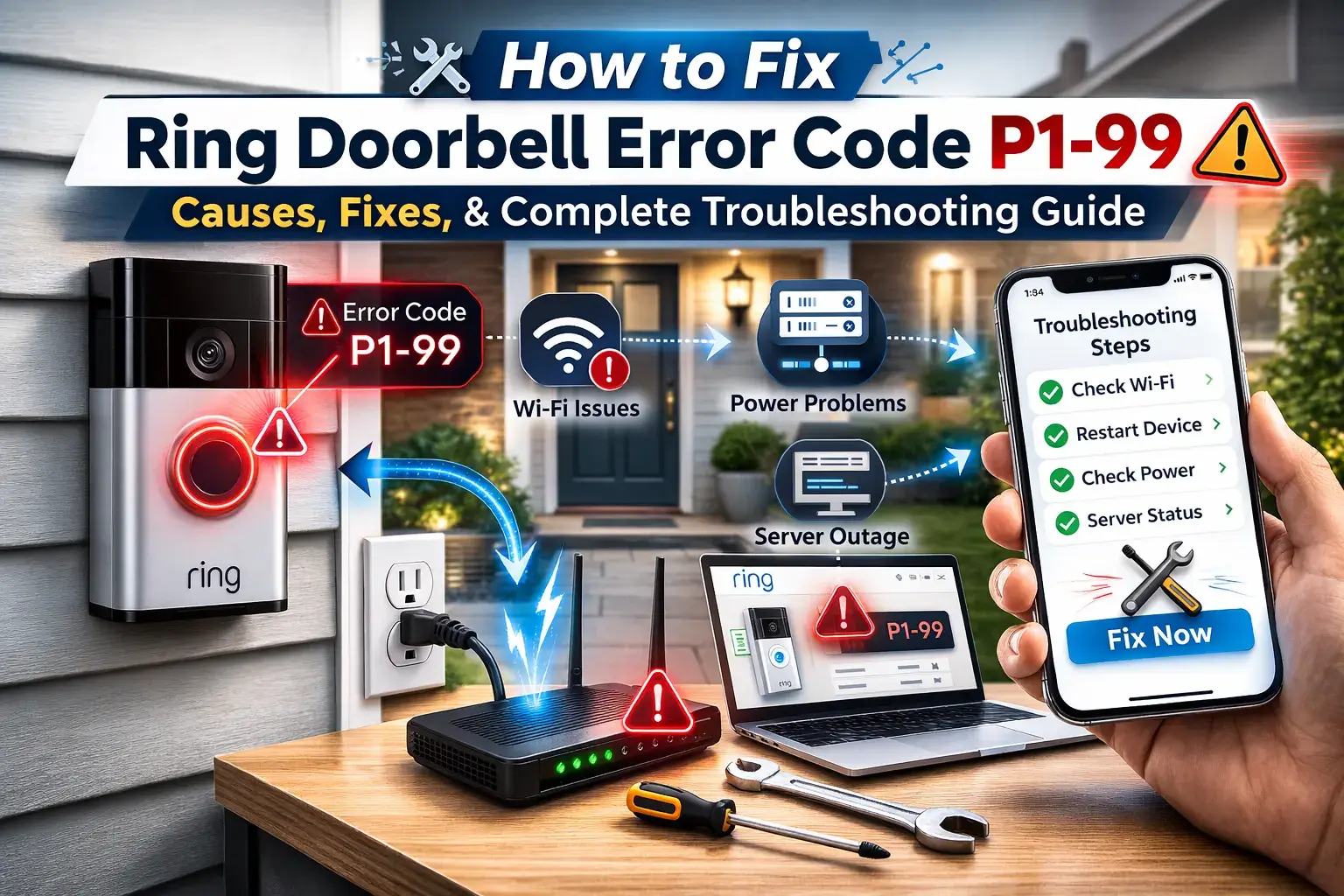
If you have turned on your Ring Doorbell and saw an error P1-99, then you are not alone. This error is one of the most frustrating errors that Ring Doorbell users usually face, especially when they are setting up their device or reconnecting it after a reset.
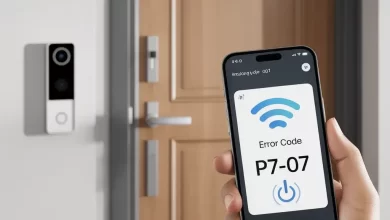
The Ring Doorbell error code P1-99 usually appears during Wi-Fi setup and prevents your doorbell from connecting to the internet, leaving your smart security system unusable at the worst possible time.
In this blog, we will discuss what the Ring Doorbell error P1-99 means, why it happens, and provide you with step-by-step solutions to fix it for good.
What is Ring Doorbell Error Code P1-99?
Ring Doorbell error code P1-99 is a Wi-Fi connectivity related error that appears when your doorbell fails to establish a stable internet connection during setup or reconnection. It will mainly affect:
- Ring Video Doorbell (1st Gen and 2nd Gen)
- Ring Doorbell (Wired)
- Ring Doorbell (Pro and Pro 2)
- Ring Doorbell (Battery models)
This error typically appears after you scan the QR code and attempt to connect the device to your Wi-Fi network.
What does Ring Doorbell Error Code P1-99 Mean?
In simple words, Ring Doorbell error code P1-99 means that your Ring Doorbell cannot properly communicate with your Wi-Fi router or the Ring servers.
This could happen due to weak signals, incorrect Wi-Fi settings, router conflicts, or outdated firmware. This communication breakdown can happen due to:
- Weak or unstable Wi-Fi signal
- Incorrect network band (2.4 GHz vs 5 GHz)
- Router firewall restrictions
- VPN interference
- Outdated app or firmware
- Temporary server outages
Common Symptoms of Ring Doorbell Error Code P1-99
If you are facing the Ring Doorbell error P1-99, you may have noticed one or more of the following signs:
- Your Ring app is stuck on Connecting to Wi-Fi.
- Error code message P1-99 displays repeatedly on the display.
- Your Doorbell LED keeps spinning or flashing.
- Your Ring app fails to complete setup.
- Your doorbell live view is not working.
- Your notifications are not coming through.
If these symptoms sounds familiar, then you are dealing with Ring Doorbell error P1-99.
Main causes of Ring Doorbell Error P1-99
If you are also facing issues due to Ring Doorbell error code P1-99, then understanding the root cause can make fixing the issue feel much easier. Here are the most common reasons behind Ring Doorbell error P1-99:
— Weak Wi-Fi signal
Ring Doorbells require a strong and stable Wi-Fi signal. Thick walls, distance from the router, or interference can trigger the Ring Doorbell error P1-99.
Ring recommends a signal strength of -60 dBm or better for reliable performance.
— Incorrect Wi-Fi band (2.4 GHz vs 5 GHz)
Many Ring Doorbell models work best on 2.4 GHz Wi-Fi. If your router automatically switches bands, it can cause connection failures.


- They offer better range
- They penetrate walls more effectively
- They provide more stable connectivity for smart devices
If your router combines both bands into a single SSID, automatic switching can interrupt setup.
— Router firewall or security settings
Some routers can block your Ring devices due to strict firewall rules or MAC filtering. Some routers block device traffic due to:
- MAC address filtering
- Disabled UPnP
- Strict firewall settings
- Guest network isolation
These restrictions can prevent your Ring from reaching its servers.
— Outdated ring app or firmware
Using an outdated Ring app or device firmware can lead to compatibility issues.
— VPN or network restrictions
If your phone is connected to a VPN or restricted network during setup, the Ring Doorbell error P1-99 may appear.
Corporate or campus networks can also block required ports.
Complete Troubleshooting Guide to Fix Ring Doorbell Error P1-99
The Ring Doorbell Error Code P1-99 usually appears during Ring Doorbell setup or while reconnecting the doorbell to a Wi-Fi network. In most cases, the issue occurs because of weak internet signals, router configuration problems, app glitches, or network restrictions blocking communication between the device and servers.
If your Ring Doorbell fails to connect or repeatedly shows setup errors, don’t panic. The problem can often be resolved using simple troubleshooting methods. Follow the solutions below in order for the best results.
1. Check Wi-Fi Signal Strength
Weak Wi-Fi connectivity is the most common reason behind Error P1-99. Smart doorbells rely on stable internet signals to communicate with cloud servers. If the router is too far away or obstacles interfere with signals, the device may fail during setup.
- Move your router closer to the doorbell location.
- Remove metal objects or thick walls blocking signals.
- Avoid placing routers near microwaves or heavy electronics.
- Install a Wi-Fi extender if your home has large coverage areas.
- Check signal strength inside the Ring app once connected.
2. Switch to a 2.4 GHz Network
Many Ring devices work more reliably on a 2.4 GHz network because it offers better range compared to 5 GHz connections. Switching network bands often resolves setup errors instantly.
- Log in to your router’s admin panel.
- Separate the 2.4 GHz and 5 GHz networks if they are combined.
- Connect your smartphone to the 2.4 GHz Wi-Fi network.
- Restart the Ring Doorbell setup process.
3. Restart Router and Modem
Temporary network glitches or overloaded routers can interrupt communication during setup. Restarting your modem and router refreshes the internet connection and clears minor technical issues.
- Turn off your modem and router.
- Wait for 30–60 seconds.
- Turn both devices back on.
- Allow the internet connection to fully restore.
- Retry setting up your Ring Doorbell.
4. Disable VPN on Your Phone
VPN services can block or reroute network traffic, which may interfere with authentication during device setup. Turning off the VPN ensures direct communication between the app and servers.
- Turn off your VPN completely.
- Force close the Ring app.
- Reopen the application.
- Retry the setup process.
VPNs often block Ring’s secure connection, triggering Ring Doorbell error P1-99.
5. Update the Ring App
Using an outdated version of the app can cause compatibility issues or setup failures. Updating the app ensures you have the latest bug fixes and improvements.
- Go to the Google Play Store or the Apple App Store.
- You have to update the Ring app again.
- You have to restart your phone.
- You have to try setting your Ring app again.
6. Factory Reset Your Ring Doorbell
Sometimes internal software glitches prevent the device from connecting properly. Performing a factory reset restores default settings and removes corrupted configurations.
- Locate the setup button on the device.
- Press and hold the setup button for 15-20 seconds.
- You have to wait for the reboot.
- You have to restart the setup from scratch.
7. Check your router firewall settings
Certain router security settings may block communication ports required by smart home devices. Adjusting firewall configurations can help restore connectivity.
- Disable MAC filtering
- Enable UPnP
- Allow ports: 80, 443, 15063, 15064.
- Disable strict guest network isolation.
- Contact your internet service provider if unsure about settings.
8. Test Using a Mobile Hotspot
Using a mobile hotspot helps identify whether the issue is caused by router settings or the device itself. If the setup works on hotspot internet, your home network configuration likely needs adjustment.
- Create a mobile hotspot using your smartphone.
- Connect the Ring Doorbell to the hotspot.
- Complete the setup process.
- If it works, review your home router configuration.
How to Prevent Ring Doorbell Error Code P1-99 in the Future
Preventive measures can save time and reduce repeated setup failures. Since smart home devices depend heavily on network stability, maintaining proper connectivity is essential.
- Keep the Ring app updated regularly.
- Use a dedicated 2.4 GHz Wi-Fi network for smart devices.
- Avoid frequent router configuration changes.
- Install Wi-Fi extenders in large homes.
- Restart your router monthly.
- Avoid using VPN services during device setup.
Final Thoughts
The Ring Doorbell error code P1-99 can be annoying, but this error is rarely permanent. With the right approach, like checking Wi-Fi strength, switching to 2.4 GHz, disabling VPNs, and resetting the device, you can usually fix the problem within minutes.
Smart home devices rely heavily on stable networks, and once your Ring Doorbell is properly connected, it delivers exactly what it promises: reliable home security and peace of mind.
If you are still stuck, you don’t have to hesitate to reach out to Ring support. Most users resolve the Ring Doorbell error P1-99 without needing a replacement.