
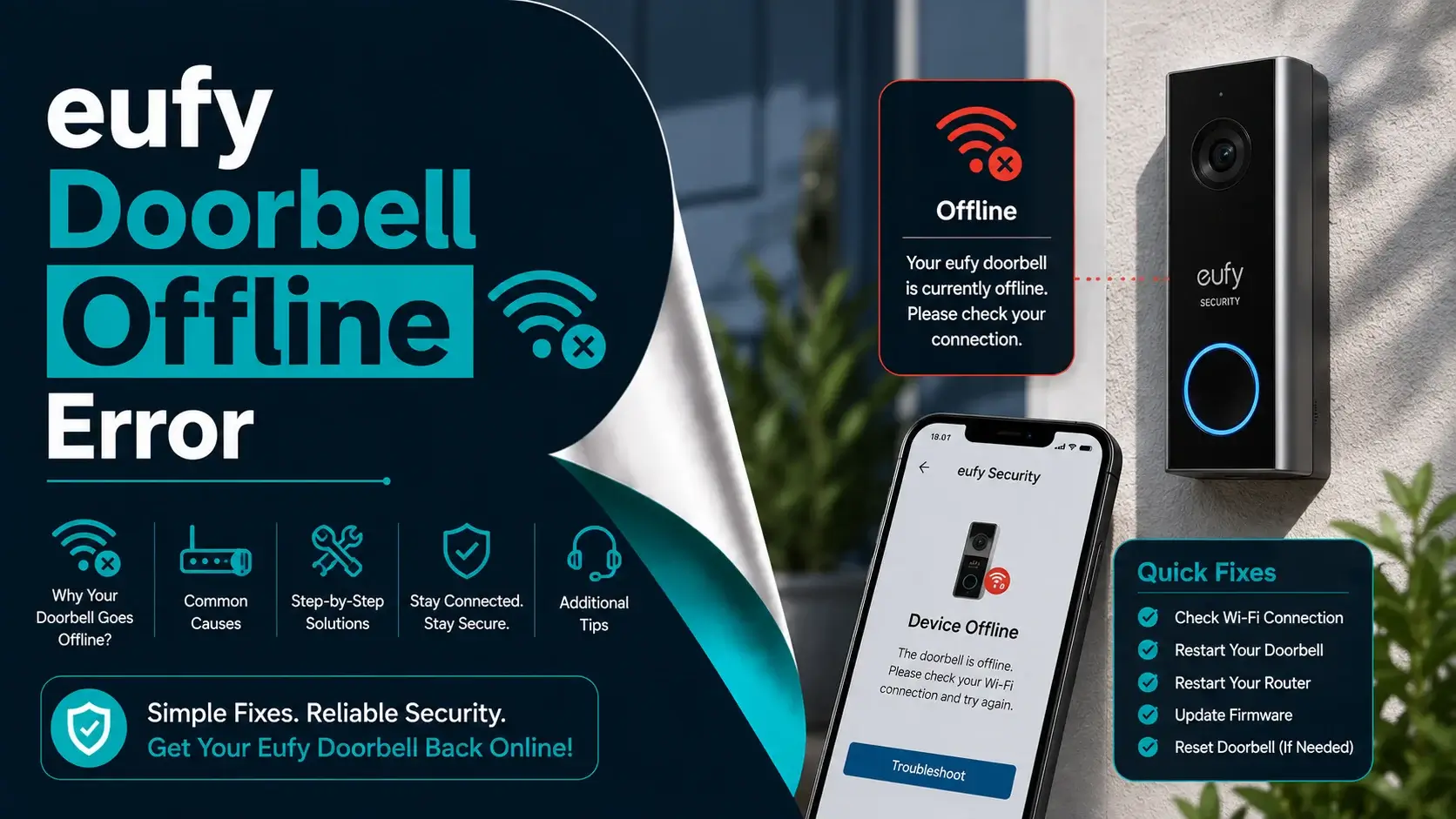
There is nothing more frustrating than waiting for a delivery or expecting a visitor, opening your Eufy app, and seeing the dreaded message: Eufy Doorbell Offline.
We all have been there once, standing at the door, wondering if the smart doorbell decided to take a nap just when you needed it the most. It is one of those moments where technology is supposed to make life easier, but suddenly feels like it is conspiring against you.
Here is the good news: your doorbell isn’t broken in most cases. You usually have trouble talking to your Wi-Fi or Eufy’s servers. It is a connectivity issue, a power issue, or a software hiccup, things you can generally fix yourself. Over the years, after dealing with offline doorbells, here are some practical tips and tricks that will work for you.
By the end of the blog, you will understand why Eufy doorbells go offline, how to troubleshoot the problem, and what you can do to prevent it from happening again.
Why Your Eufy Doorbell Goes Offline?
Before we dive into fixes, it is important to understand why this happens. The offline status does not automatically mean your device is broken. So don’t panic. Most of the time, it is a minor issue you can handle at home. Here are the main reasons:
Wi-Fi Signal Weakness or Interference
This is the most common culprit of your Eufy doorbell going offline. Your doorbell relies on a strong Wi-Fi connection to communicate with your phone and Eufy servers. Even if your smartphone shows full bars in the living room, your doorbell might be on the other side of a wall, in the corner of the porch, or on the second floor and that signal might not be reaching it reliably.
Think of it like a conversation: your phone is shouting across the room, but your doorbell is whispering from the basement. It just can’t be heard.
- Use a 2.4 GHz network rather than 5 GHz. The 5 GHz is faster, but it does not travel through walls very well. 2.4 GHz may be slower, but it gets the job done, especially for a device like a doorbell that does not need super-fast speeds.
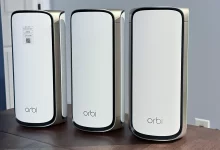
- Consider a Wi-Fi extender or mesh system if your doorbell is far from the router. Installing a small mesh node near the porch will solve all problems with random offline issues, even during storms.
Avoid placing your router near appliances like microwaves or cordless phones that can interfere with the signal.
Power Supply Issues
Believe it or not, a lot of offline problems are actually power issues.
– Battery-Powered Models:
If the battery is low, the doorbell may shut off or go offline temporarily. Charging it fully often fixes the issues constantly. You should always keep a USB cable handy for emergencies, and nothing is worse than assuming the device is broken when it is just out of the network.
– Wired Models:
These models rely on a transformer supplying 16-24V AC. Loose connections, worn wires, or a failing transformer can make your doorbell act as if it is sleeping. It may take several hours to troubleshoot, only to find a tiny wire loose after a storm.
Recent Router or Wi-Fi Changes
If you have changed your Wi-Fi password, switched routers, or upgraded your internet service, your doorbell won’t automatically know the new credentials. This is one of those problems that is obvious once you realize it, but is often overlooked.
- Reconnecting the device manually usually solves this instantly.
- Always double-check the Wi-Fi band and remember 2.4 GHz is what Eufy recommends.
Outdated Firmware or App
Firmware and app updates are not just technical jagron, and they fix real-world bugs that can cause offline problems.

- Updates improve Wi-Fi stability, security, and overall reliability.
- Check the app for available updates regularly. You should personally check yours once a month, and it will save a lot of stress.
Interference from Other Devices
Smart homes are full of devices: Alexa speakers, smart TVs, cordless phones, microwaves, and even baby monitors. Sometimes these gadgets interfere with your Wi-Fi signal.
- Temporarily turning off nearby electronics can help you diagnose whether interference is the culprit.
- If this helps, consider moving your router or adding a small Wi-Fi extender near the doorbell.
Temporary Server or App Glitches
Sometimes, it is not your fault at all. Eufy’s servers can experience outages, maintenance, or temporary glitches. This can make your device appear offline even if it is recording locally.
- Checking Eufy’s website, Twitter updates, or DownDetector can confirm if this is happening.
- Usually, these issues are short-lived and resolve themselves within a few hours.
Step-By-Step Guide To Fix Eufy Doorbell Offline Issue
We are clear with the basics. Now let’s talk about solutions. Here are some easiest fixes and work toward more involved ones. Most of the time, the first couple of steps are enough.
1. Check Power
Always start with the basics. Make sure your doorbell has enough power:
- Battery Models: Remove it from the mount, charge it fully, then reinstall. This alone solves a large percentage of offline cases.
- Wired Models: Check the transformer voltage and wiring. Even a tiny loose connection can make the doorbell vanish from the app.
Once the power is confirmed, move on to network troubleshooting.
2. Restart the Router and the Doorbell
Sometimes, the classic power cycle works wonders:
- Turn off your router for 30-60 seconds.
- Turn it back on and wait for the lights to stabilize.
- Open the Eufy app – Select your doorbell – Tap Restart Device.
This simple step fixes the temporary connectivity glitches more often than you would think.
3. Check Wi-Fi Signal Strength
Your doorbell cannot function properly if the Wi-Fi signal is weak.
- In the app: Settings – General – Wi-Fi Connection
- Look at the signal bars.
- Weak signals? Move the router, add an extender, or adjust the placement of the doorbell.
You can test your phone at the doorbell’s location. If videos buffer on my phone, the doorbell won’t stream reliably either.
4. Reconnect to Wi-Fi
If Wi-Fi changes are the issue:
- Open the app – Device Settings – Wi-Fi connection
- Follow instructions and enter the network credentials carefully.
- Select 2.4 GHz, not 5 GHz.
This step alone solves most offline issues.
5. Update Firmware and App
Outdated software can cause random disconnects:
- Open the app – Device Info – Firmware Version
- Install updates if available.
- Restart the doorbell.
Regular updates prevent the majority of offline problems.
6. Factory Reset (Only if Necessary)
If none of the above works:
- Press and hold the SYNC button for 10-12 seconds until the LED flashes.
- Re-add the doorbell in the app as a new device.
Yes, it is inconvenient because it erases previous settings, but sometimes it is the only way to resolve persistent issues.
7. Check Server Status
If your doorbell still shows offline, it could be Eufy’s servers. Check:
- Eufy’s official website
- Twitter updates
- DownDetector
Short outages happen occasionally, and patience is the solution here.
8. Adjust Router Settings
Persistent offline problems? Consider these tweaks:
- Disable MAC filtering or whitelist your doorbell.
- Enable UPnP (Universal Plug and Play).
- Avoid VPNs on the local network.
- Ensure the 2.4 GHz network is visible and active.
These adjustments usually solve stubborn connectivity issues.
Tips To Keep Your Doorbell Online
Once your doorbell is back online, following a few simple habits can prevent future offline issues:
- Keep firmware and app updated.
- Ensure strong Wi-Fi coverage at the doorbell location.
- Avoid frequent Wi-Fi password changes.
- Reboot your router occasionally.
- Minimize network interference from other electronics.
- Consider a Wi-Fi extender near the doorbell if you live in a large or multi-story home.
A properly maintained smart doorbell rarely gives trouble, and when it does, you now know exactly how to fix it.
Final Thoughts
An Eufy doorbell offline message is frustrating, but it’s rarely catastrophic. Most of the time, Wi-Fi, power, battery issue or firmware issues are the cause, all solvable at home. Treat your smart devices like part of home maintenance: a little attention, regular updates, and occasional troubleshooting will keep them reliable for years.
Remember, technology isn’t perfect.
Even the best devices can hiccup. But understanding how they work, doing a few simple checks, and keeping your system updated goes a long way toward avoiding surprises and ensuring your home stays secure.