How to Setup Govee Lights with Alexa & Customize Your Lighting Experience

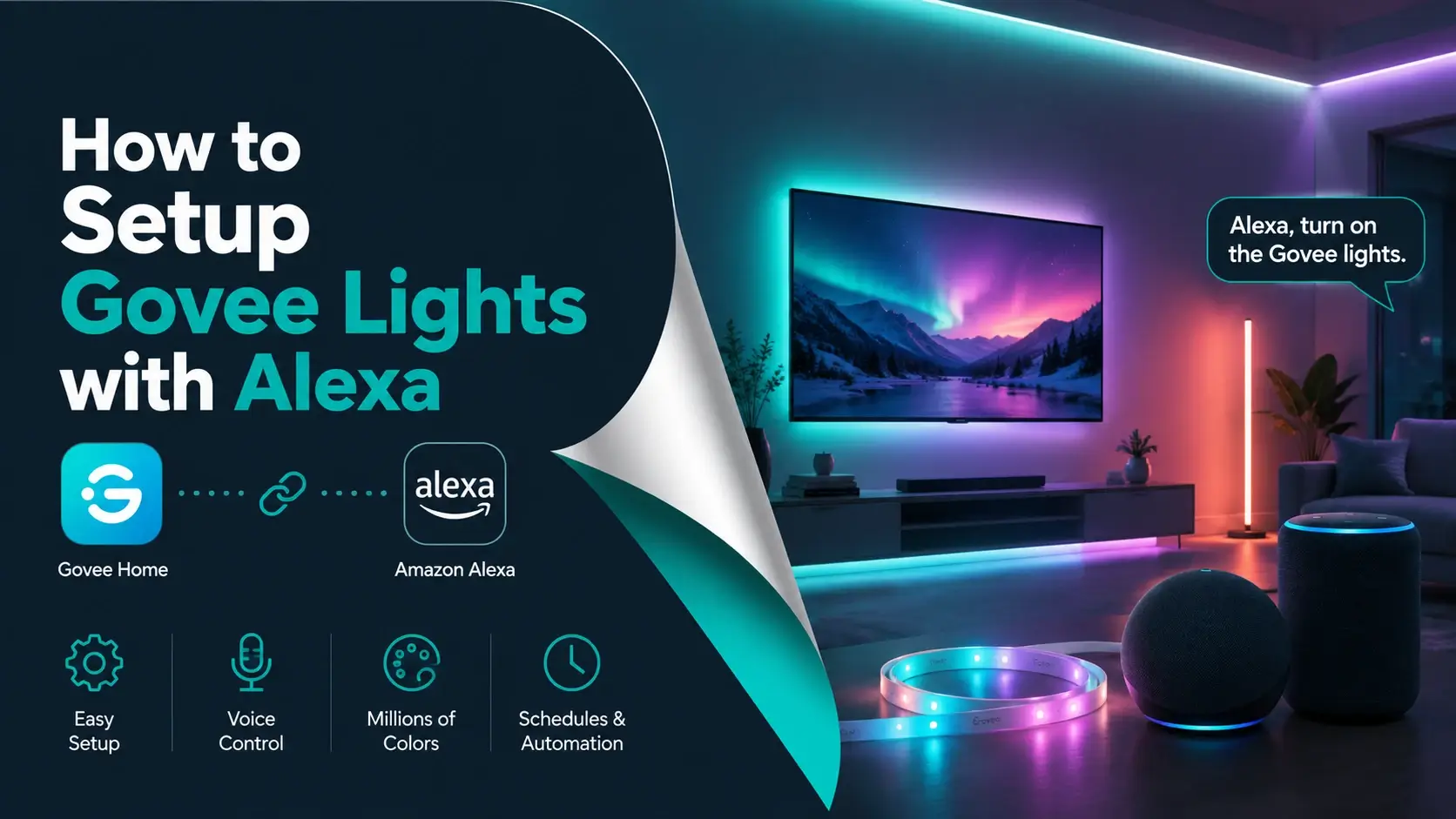
If you recently bought Govee smart lights and want to make your home feel a bit more modern and comfortable, then learning how to set up Govee lights with Alexa is one of the easiest and most useful things you can do. It may sound technical to you at first, but once you go through it step by step, you will see that the process is actually very simple and does not require any advanced skills.
In this blog, you will get to know everything in a very clear and natural way. You will be aware of Govee light Alexa setup, how to connect Govee lights to Alexa, Govee home app setup, Alexa smart home integration, and voice control smart lights, so you can control your Govee lights just by speaking. You will also learn how to fix common issues and make your setup work smoothly every day.
At the end of the blog, you will not just understand the steps but also why each step matters, and even if something goes wrong, you will know exactly what to do.
Let’s start with some basics first…
What you need before you setup Govee lights with Alexa?
Before starting the setup process, you need to make sure that everything is ready. Keeping things ready before the setup will save you time and avoid confusion later.
Here are some basic things you need before you setup Govee lights with Alexa:
- Govee smart lights that are WiFi-supported models.
- A smartphone that can be an Android or an iPhone.
- A stable WiFi connection of 2.4GHZ.
- A Govee Home app installed on your device.
- An Alexa app installed on your device.
- An existing Amazon account.
One of the most important things you need to understand is that your Alexa works through the internet, so if your WiFi is unstable, your Govee lights may not respond or not working properly. A strong and stable internet connection is the key to smooth work performance.
Step-by-step Guide to Setup Govee lights with Alexa
After keeping the important things ready for setup, you can now move to the main process, which is to set up Govee lights with Alexa in a very simple and easy way. Here are some simple steps you have to follow to setup Govee lights with Alexa:
Step 1: Install and open the Govee Home app
First, you need to download the Govee Home app from your phone’s app store. Once you have installed the app, you have to open it and create your account. After logging in to the Govee Home app, you have to:
- First, tap on the Add device.
- Secondly, select your Govee light model.
- Then, turn on Bluetooth and WiFi on your phone.
- Lastly, follow the instructions on the screen.
This step helps to connect your Govee lights to your phone and Wi-Fi network.
Step 2: Connect your Govee lights to WiFi
When adding your device to the Govee app, you will be asked to connect it to WiFi. Before connecting your Govee lights to WiFi, you have to make sure that:
- Your phone and lights are on the same network.
- You are using a 2.4GHz network because many Govee lights do not support 5GHz.
Once you are connected to WiFi, you need to test your Govee lights from the Govee app. You have to try changing colors or brightness to confirm that everything is working properly.
Step 3: Install and Setup the Alexa app
If you have not already setup the Alexa app yet, then you have to install the Alexa app and log in using your Amazon account. After you have logged into your Alexa app, you have to:

- First, go to the More section.
- Lastly, tap on “Skills & Games”.
This is where you will connect your Govee lights with Alexa.
Step 4: Enable the Govee Skill in Alexa
To enable the Govee skill in Alexa, you have to search for “Govee” inside the skills section. Now, you have to follow the steps below:
- Firstly, tap on the Govee skill.
- Secondly, click Enable.
- Lastly, log in using your Govee account details.
These steps help you to connect your Govee account with Alexa so both systems can communicate.
Step 5: Discover your devices
After linking your account, you have to:
Tap “Discover Devices” in the Alexa app.
Or
Say “Alexa, discover devices”.
Alexa will scan and automatically find your Govee lights, and this may take around 30 to 60 seconds.
Step 6: Rename your lights for easy control
Once your devices are found, you should rename them.
For example:
- Bedroom light
- Living room strip
- Desk light
Simple names make voice commands easier. You have to avoid complicated or similar names.
Step 7: Test voice control
Now comes the best part of the whole setup process. You can try testing the voice control by using the voice commands like:
- “Alexa, turn on the bedroom light.”
- “Alexa, set the living room light to blue.”
- “Alexa, dim desk light to 50 percent.”
If your Govee lights respond, then your whole setup is complete.
Create Routines for Better Smart Lighting
Once you have setup Govee lights with Alexa successfully, you can now take it one step further by creating routines for yourself for better smart lighting. Routines will allow you to control multiple things at once with a single command.
Here are some examples of routines for you:
- If you say, “Alexa, Good morning,” it will turn on the lights slowly.
- If you say, “Alexa, Movie time,” it will make the lights dim and warm.
- If you say, “Alexa, Good night,” it will turn off the lights automatically.
To create a routine for better smart lighting, you have to:
- First, open the Alexa app.
- Secondly, go to “More”, then “Routines”.
- Lastly, tap on “Create Routine”.
This makes your smart home experience much smoother and more personalized.
Common Problems and how to fix them
Sometimes things do not work as you expect them to work. The same thing goes with Govee lights with an Alexa setup.
Here are some common issues and their simple fixes:
1. Govee lights not showing in Alexa
To fix the Govee lights not showing in Alexa issue, you have to:
- First, make sure the Govee skill is enabled.
- Secondly, re-run device discovery.
- Lastly, check if the lights are connected to the WiFi.
2. Alexa is not responding to voice commands
To fix Alexa, which does not respond to your voice commands, you have to:
- First, check your device names.
- Then, you have to try to speak clearly.
- Lastly, you have to avoid similar names for different devices.
3. Wi-Fi connection issues
To fix Wi-Fi connection issues, you have to:
- First, use 2.4GHz Wi-Fi.
- Now, restart your router.
- Lastly, keep your lights within Wi-Fi range.
4. Govee Home app not syncing
To fix your Govee Home app not syncing, you have to:
- First, log out and log back in.
- Now, update your Govee Home app.
- Lastly, restart your phone.
Benefits of Connecting Govee lights with Alexa
Once everything is set up, you will start noticing the real benefits of connecting Govee lights with Alexa. Here are some benefits that you may notice:
- Hands-free control: When you connect Govee lights with Alexa, you do not need to use your phone every time. You just have to speak, and your lights will respond automatically.
- Better comfort: With the Govee light connected with Alexa, you can adjust your lighting without getting up, and it is especially useful at night.
- Energy saving: You can turn off your Govee lights easily with Alexa or schedule them to save more electricity.
- Smart home experience: Your home feels more modern and convenient when you connect Govee lights with Alexa.
Are all Govee Lights Compatible with Alexa?
This is the most common question that comes to everyone’s mind: whether all Govee lights are compatible with Alexa. The answer is no, not all Govee lights support Alexa.
Before buying or setting up your Govee lights with Alexa, you need to check the following things:
- Does your Govee light product support Wi-Fi or not
- Alexa compatibility with Govee lights is mentioned or not.
Because Bluetooth-only Govee light models usually do not work with Alexa.
Final Thoughts
Learning how to setup Govee lights with Alexa is one of the easiest ways to upgrade your home without spending too much money or time on it. The whole setup process is very simple, and once you understand it, you can easily set up multiple lights and control them without any stress.
The most important things that you have to remember are:
- Always connect your lights properly in the Govee app first.
- Link your Govee account with Alexa correctly.
- Use a stable Wi-Fi for smooth performance.
Once everything is set up, you can easily enjoy full control of your lighting by just using your voice, which makes your everyday life more comfortable.