Govee Lights Not Working: Simple Fixes that Actually Work for You

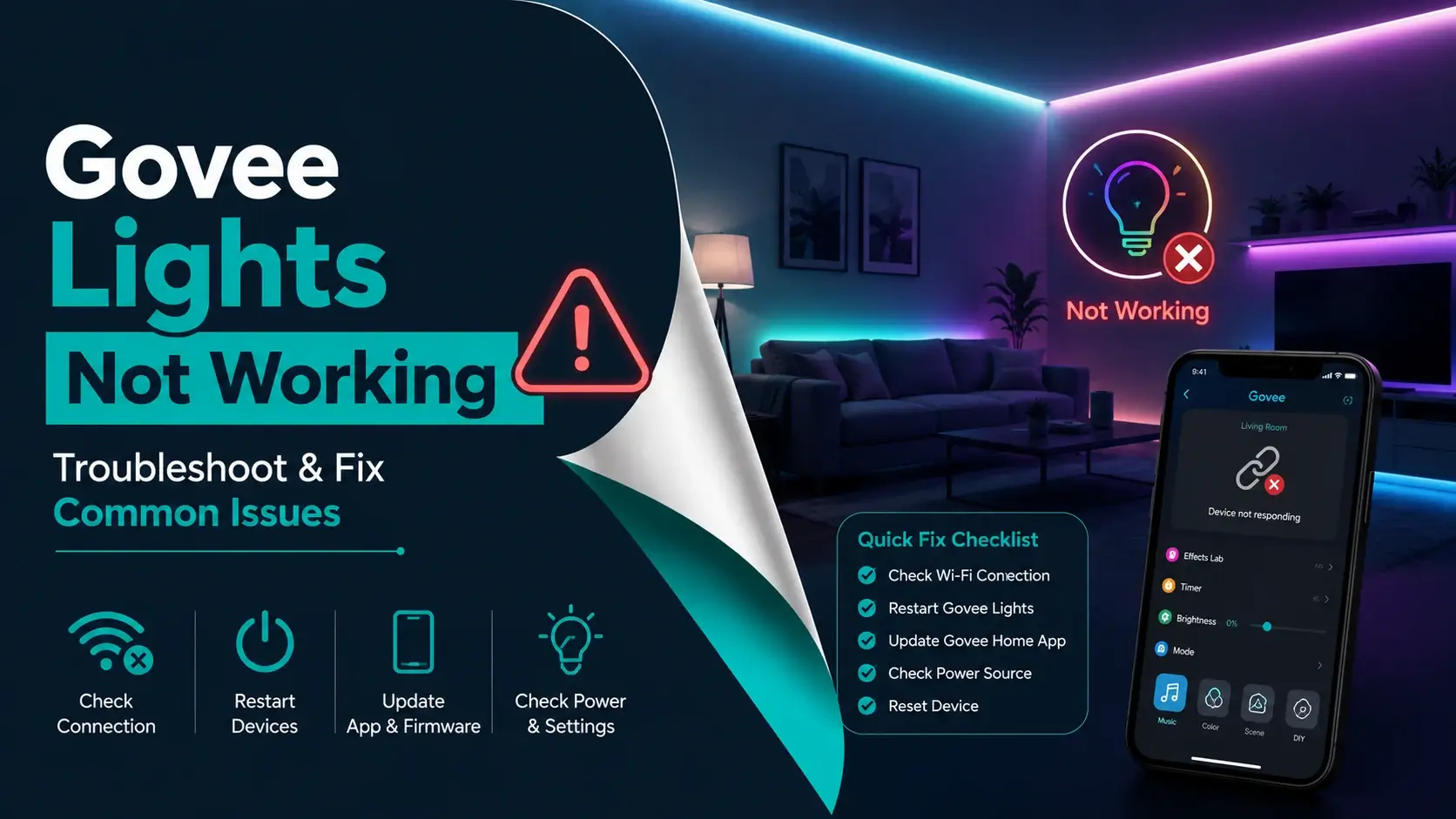
Smart lighting has made our home lighting more flexible and fun. Many people use Govee lights to add some color and change the mood of their rooms. But sometimes users may face common issues such as Govee lights not working, the lights may stop turning on, fail to connect with Wi-Fi, or stop responding to your mobile app. This can feel frustrating, especially when your lights were working perfectly before a few minutes.
If you are facing the same problem of Govee lights not working, then you don’t have to worry because you are not alone may people go through the same issues.
Here’s some good news for you: Most cases, such as connection problems, power issues, or incorrect settings, can be solved in a few minutes. This blog will help you understand the most common reasons behind your Govee lights not working and how you can fix them step by step by using simple methods.
Why Govee Lights Not Working?
When Govee lights stop working, there will be a clear reason behind it, and understanding the real cause will help you fix the problem faster. Here are some common reasons behind your Govee lights not working:
- Power supply problems
- Unstable WiFi connection
- Outdated mobile app
- Incorrect setup or pairing of devices
- Damaged cables or hardware
- Firmware glitches
- Smart home integration errors
Sometimes the issue can be very small, such as your power adapter is loose, and other times the issue may be related to some network settings or the Govee app itself.
Common Causes for Govee Lights not Working Issue
1. Power Supply Issues (Most Overlooked Cause)
Power-related issues are one of the most common reasons why your Govee lights stop working. If your lights are not turning on at all, the problem usually starts with the power source. This can happen due to a loose adapter, faulty wall outlet, damaged cable, or an improperly connected control box. Even a slightly loose connection can interrupt the power flow and make the lights completely unresponsive.
- Lights do not turn on at all
- No LED indicators
- Control box unresponsive
- Lights suddenly turned off and never came back
2. Weak or Unstable Wi-Fi Connection
Many Govee lights depend on a stable internet connection to work with the mobile app. If your Wi-Fi signal is weak or unstable, your lights may stop responding or appear offline. This often happens when the router is too far away, blocked by walls, or when the wrong network band is used.
- Lights show “offline” in app
- Commands take too long or fail
- Random disconnections
- Setup process fails
3. Mobile App Bugs or Glitches
The Govee Home app is responsible for controlling your lights. If the app is outdated, has bugs, or has corrupted cache data, it may fail to communicate with your device properly. In many cases, the lights are fine, but the app creates the issue.
- App crashes or freezes
- Device not appearing
- Controls not responding
- Delayed actions
4. Incorrect Setup or Pairing Errors
If your Govee lights were recently installed or reset, incorrect setup can prevent them from working properly. This includes entering the wrong Wi-Fi password, skipping steps, or pairing the device incorrectly.
- Device not detected during setup
- Pairing fails repeatedly
- Lights not syncing with the app
- Setup process stops midway
5. Firmware Glitches and Outdated Software
Firmware is the internal system software that runs your Govee lights. If it becomes outdated or encounters a glitch, it can cause performance issues and connectivity problems.
- Lights disconnect randomly
- Slow or delayed response
- Features not working properly
- Lights behaving inconsistently
6. Smart Home Integration Problems
If you are using voice assistants like Amazon Alexa or Google Assistant, integration issues can stop your lights from responding. This usually happens due to syncing or account linking problems.
- Voice commands not working
- Device not showing in assistant app
- Sync delays
- Assistant cannot control lights
7. Distance and Signal Interference
Some Govee lights rely on Bluetooth or local signals. If the distance between the controller and lights is too much, or if there are obstacles like walls or metal objects, the signal may weaken.
- Slow response from lights
- Connection drops randomly
- Lights disappear from the app
- Inconsistent performance
8. Hardware Damage
In some cases, the issue may be physical damage to the lights or accessories. This can happen due to wear and tear, bending LED strips, water exposure, or overheating.

- Flickering lights
- Partial lighting (some sections not working)
- Visible damage to cables or strips
- Burn marks or overheating signs
Methods to Fix Govee Lights not Working Issue
1. Fix Power Supply Issues
If your Govee lights are not turning on, the first thing you should check is the power supply. Many times, the issue is simply due to a loose connection, faulty outlet, or damaged cable. Ensuring a proper power connection can instantly bring your lights back to life.
– Steps to Fix:
- Check if the power adapter is properly plugged in
- Test the wall outlet with another device
- Inspect the power cable for any visible damage
- Reconnect the control box firmly
- Unplug and plug the adapter again securely
2. Fix Wi-Fi Connectivity Problems
If your lights are not responding or showing offline, your network connection may be the issue. Since most Govee devices rely on Wi-Fi, a weak or incorrect connection can prevent proper communication with the app. Steps to Fix: Move your router closer to the lights Restart your Wi-Fi router Ensure you are using a 2.4 GHz network Reconnect the device through the app Enter the correct Wi-Fi password
3. Fix Mobile App Issues
The Govee Home app must function properly for your lights to respond. If the app is outdated or glitchy, it can disrupt communication between your phone and the lights.
– Steps to Fix:
- Update the app to the latest version
- Log out and log back into your account
- Clear app cache (for Android users)
- Reinstall the app completely
- Restart your smartphone
4. Fix Setup or Pairing Errors
If your lights are not connecting during setup, the issue may be related to incorrect pairing. Proper setup is essential for your lights to function correctly.
– Steps to Fix:
- Restart the setup process from the beginning
- Ensure your phone is connected to the correct Wi-Fi
- Turn on Bluetooth (if required)
- Keep the device close during pairing
- Follow all setup instructions carefully
5. Fix Firmware Issues
Outdated firmware can cause bugs and connectivity problems. Updating your device ensures smooth performance and better compatibility with the app.
– Steps to Fix:
- Open device settings in the app
- Check for available firmware updates
- Install the latest version
- Wait until the update completes fully
- Restart the device after updating
6. Fix Smart Home Integration Issues
If your lights are not responding to voice commands via Amazon Alexa or Google Assistant, you may need to refresh the integration.
– Steps to Fix:
- Unlink the Govee account from the assistant
- Reconnect and link the account again
- Refresh or rediscover devices
- Ensure the device shows as “online”
- Restart your smart speaker
7. Fix Distance and Signal Problems
If signal interference or distance is causing the issue, adjusting the placement of your devices can improve connectivity.
– Steps to Fix:
- Move the controller closer to the lights
- Remove obstacles like walls or metal objects
- Avoid placing near heavy electronics
- Keep the controller in an open space
8. Fix Hardware Damage Issues
If your lights are physically damaged, software fixes will not work. You need to inspect the hardware carefully and take the necessary action.
– Steps to Fix:
- Check LED strips for visible damage
- Inspect connectors and cables
- Look for burn marks or overheating
- Replace damaged components if needed
- Contact support if the device is under warranty
Final Thoughts
From a technical perspective, most Govee lights not working issues are not serious hardware failures – they are usually caused by:
- Connectivity problems
- Software glitches
- Minor setup errors
By understanding the problem first and then applying the correct solution, you can fix your lights quickly and avoid unnecessary replacements.
With proper care and maintenance, your Govee lighting system will continue to deliver a smooth, colorful, and reliable experience for years.
Don’t forget to share your experience and let us know in the comment section below or check out more articles on our website aDigital Lamp now!