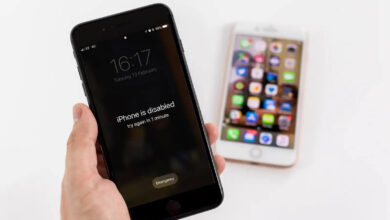

Your iPhone used to last all day. Now it’s at 30% by lunch, and it shuts off in the cold even when the screen says there’s charge left. Sound familiar?
Every iPhone battery wears out over time. It’s not a defect. It’s just how lithium-ion batteries work. But a worn battery doesn’t mean you need a new phone. In most cases, a battery replacement brings back strong battery life and smooth performance for a fraction of the cost. The tricky part is knowing when to make the switch.
Replace it too early, and you spend money you didn’t need to. Wait too long, and you deal with slowdowns, surprise shutdowns, and constant charging.
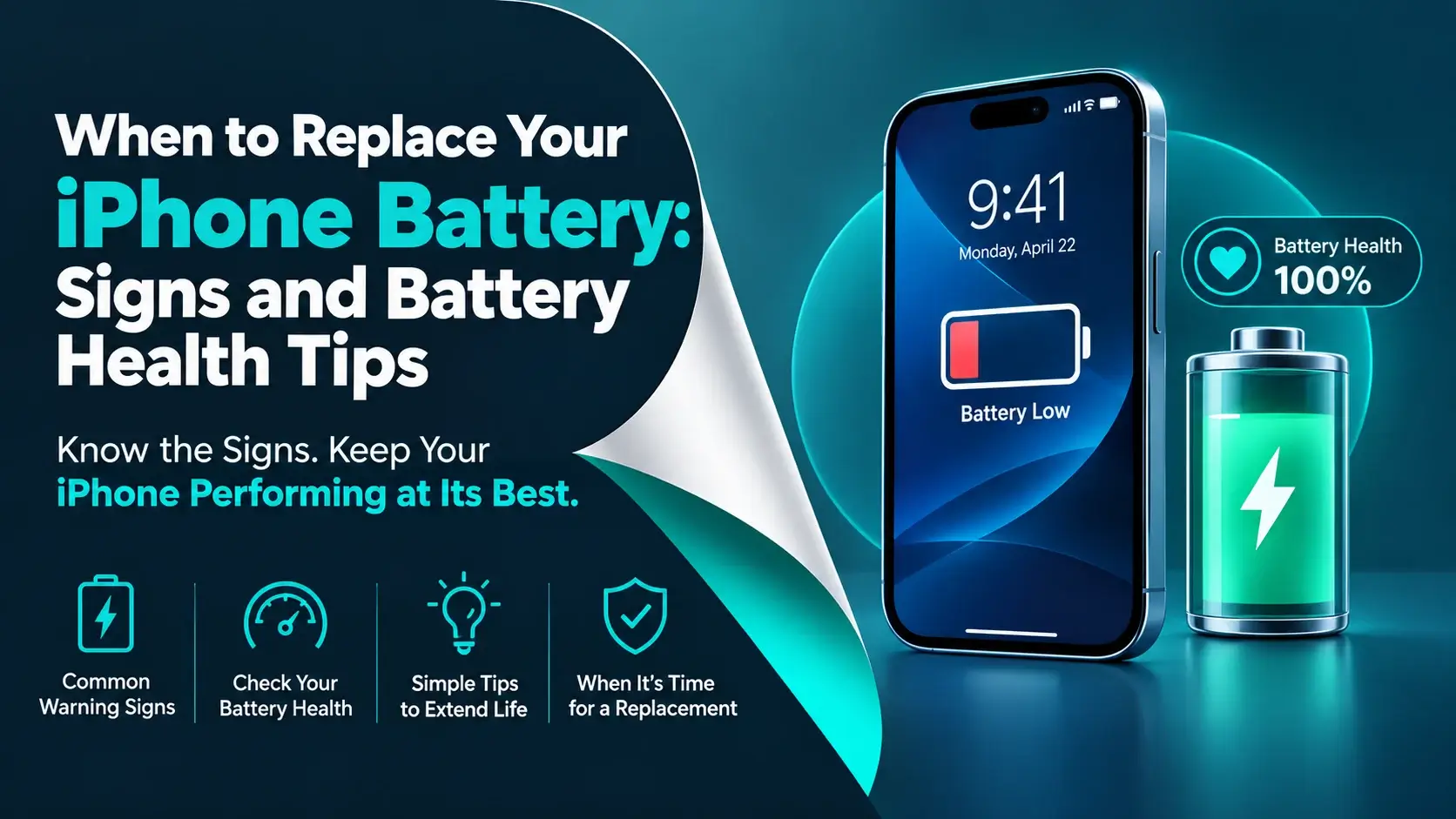
This guide covers how iPhone batteries age, how to check your battery health, the clear signs it’s time for a replacement, and simple habits that help your battery last longer between replacements. It also covers your repair options.
Why iPhone Batteries Wear Out?
Every iPhone uses a lithium-ion battery. These batteries are light and powerful, but they lose a little capacity every time you charge and drain them.
Battery wear is measured in charge cycles. One cycle equals using 100% of the battery’s capacity, but not always in one go. If you use 50% today, charge it back up, and use another 50% tomorrow, that counts as one cycle.
A few things speed up wear:
- Heat. High temperatures are the biggest enemy of battery health.
- Age. Batteries break down slowly even when they sit unused.
- Deep drains. Regularly running the battery to 0% puts extra stress on it.
- Long periods at 100%. Sitting fully charged for hours, especially when warm, adds wear.
So two phones the same age can have very different battery health depending on how they’re used and stored.
How to Check Your iPhone’s Battery Health
Your iPhone tracks its own battery condition. Checking takes less than a minute.
- Open Settings.
- Tap Battery.
- Tap Battery Health (on some iOS versions, it’s called Battery Health & Charging).
Here you’ll see Maximum Capacity. This shows how much charge your battery can hold compared to when it was new. A new battery reads 100%.
You may also see a note about Peak Performance Capability. If your iPhone has shut down unexpectedly because the battery couldn’t keep up, iOS may slow the phone slightly to prevent more shutdowns. This message tells you that’s happening.
On iPhone 15 and newer models, you can also see your cycle count. Go to Settings > General > About and scroll down to the battery section.
Clear Signs It’s Time for a New Battery
The numbers help, but your daily experience matters too. These are the most common signs your battery needs replacing:




- Maximum Capacity is below 80%. This is the point where most people notice a real drop in battery life.
- You see a “Service” message in Battery Health settings.
- The phone shuts off suddenly, even at 20% or 30%, especially in cold weather or when opening the camera.
- The battery drains fast with normal use, like checking email or scrolling social media.
- Your iPhone feels slower than it used to, with lag when opening apps.
- You charge more than once a day when you didn’t need to before.
- The battery percentage jumps around, like dropping from 40% to 10% in minutes.
- The screen lifts or bulges. This can mean a swollen battery. Stop using and charging the phone and get it checked right away.
If you notice two or more of these, a replacement is likely worth it.
What 80% Really Means
Apple designs iPhone batteries to keep about 80% of their original capacity after a set number of full charge cycles. That number depends on the model:
- iPhone 15 and newer – About 1,000 cycles
- iPhone 14 and older – About 500 cycles
For most people, 500 cycles takes roughly two years of daily use. Heavy users may get there faster.
Below 80%, the battery still works, but you’ll notice it more. Battery life gets shorter, and the phone is more likely to slow down or shut off under heavy use. That’s why 80% is a good rule of thumb for when to start thinking about a replacement. If your phone still lasts the day and runs smoothly at 82% or even 78%, there’s no rush.
Rule Out Other Causes First
Not every battery drain means the battery is bad. Sometimes software or settings are to blame. Before you pay for a replacement, try these quick checks:
- Look at battery usage. In Settings > Battery, see which apps use the most power. One misbehaving app can drain a healthy battery.
- Update iOS. Updates often fix battery bugs.
- Give it a few days after an update. iPhones do extra background work right after updating, which can drain the battery faster for a day or two.
- Lower screen brightness or turn on auto-brightness.
- Turn off Background App Refresh for apps that don’t need it.
- Restart your phone. It sounds simple, but it clears up a lot of odd behavior.
If battery life is still poor after these steps, and your Maximum Capacity is low, the battery is the likely cause.
Your Battery Replacement Options
You have a few choices when it’s time for a new battery.
- Apple or an Apple Authorized Service Provider. Uses genuine Apple parts. If you have AppleCare+ and your battery is below 80%, the replacement is covered at no extra cost.
- Independent repair shops. Often faster and sometimes cheaper. Many can swap a battery the same day, often within an hour.
- DIY kits. Possible, but not easy. iPhone batteries are glued in, and mistakes can damage the screen or other parts.
If you go with an independent shop, ask what kind of battery they use and whether the repair comes with a warranty. Be aware that on newer iPhones, a non-genuine battery may show an “Unknown Part” message in Settings. The battery still works, but the Battery Health readings may not show.
For South Florida residents, searching for iphone battery replacement aventura will bring up local shops. Compare reviews, warranty terms, and turnaround times before you choose.
Habits That Help Your Battery Last Longer
A new battery is a fresh start. These habits help it stay healthy longer:
- Turn on Optimized Battery Charging. It learns your routine and holds the charge at 80% until you need it.
- Use the 80% charge limit if your iPhone supports it (iPhone 15 and newer).
- Keep it cool. Don’t leave your phone in a hot car or in direct sun. Apple recommends using it between 32°F and 95°F (0°C to 35°C).
- Avoid draining to 0%. Charging somewhere between 20% and 80% is easier on the battery.
- Take off thick cases while charging if the phone gets warm.
- Use good chargers and cables. Stick with Apple or certified accessories.
- Store it half charged. If you won’t use a phone for a while, leave it around 50%.
You don’t need to follow every rule perfectly. Just avoid heat and extreme highs and lows when you can.
Don’t Forget Your Other Apple Devices
iPads, Apple Watches, and AirPods use lithium-ion batteries too, and they age the same way. An iPad that used to last a full school day but now dies by noon likely has a worn battery.
iPads don’t show a Battery Health screen like iPhones do on most models. So pay attention to how long a charge lasts and whether the device shuts down early. Swelling is also a risk with older iPads. If the screen starts to lift from the frame, stop charging it.
If you’re in Georgia, searching for iPhone repair cumming can help you find a local shop that handles iPhone battery swaps.
Final Thoughts
A tired battery is one of the most common iPhone problems, and one of the easiest to fix. Check your Battery Health every few months. Once Maximum Capacity drops below 80%, or you start seeing shutdowns, slowdowns, or a “Service” message, it’s time to plan a replacement.
A new battery can make an older iPhone feel close to new again. Pair it with good charging habits, keep the phone away from heat, and you can get several more years out of the device you already own.