
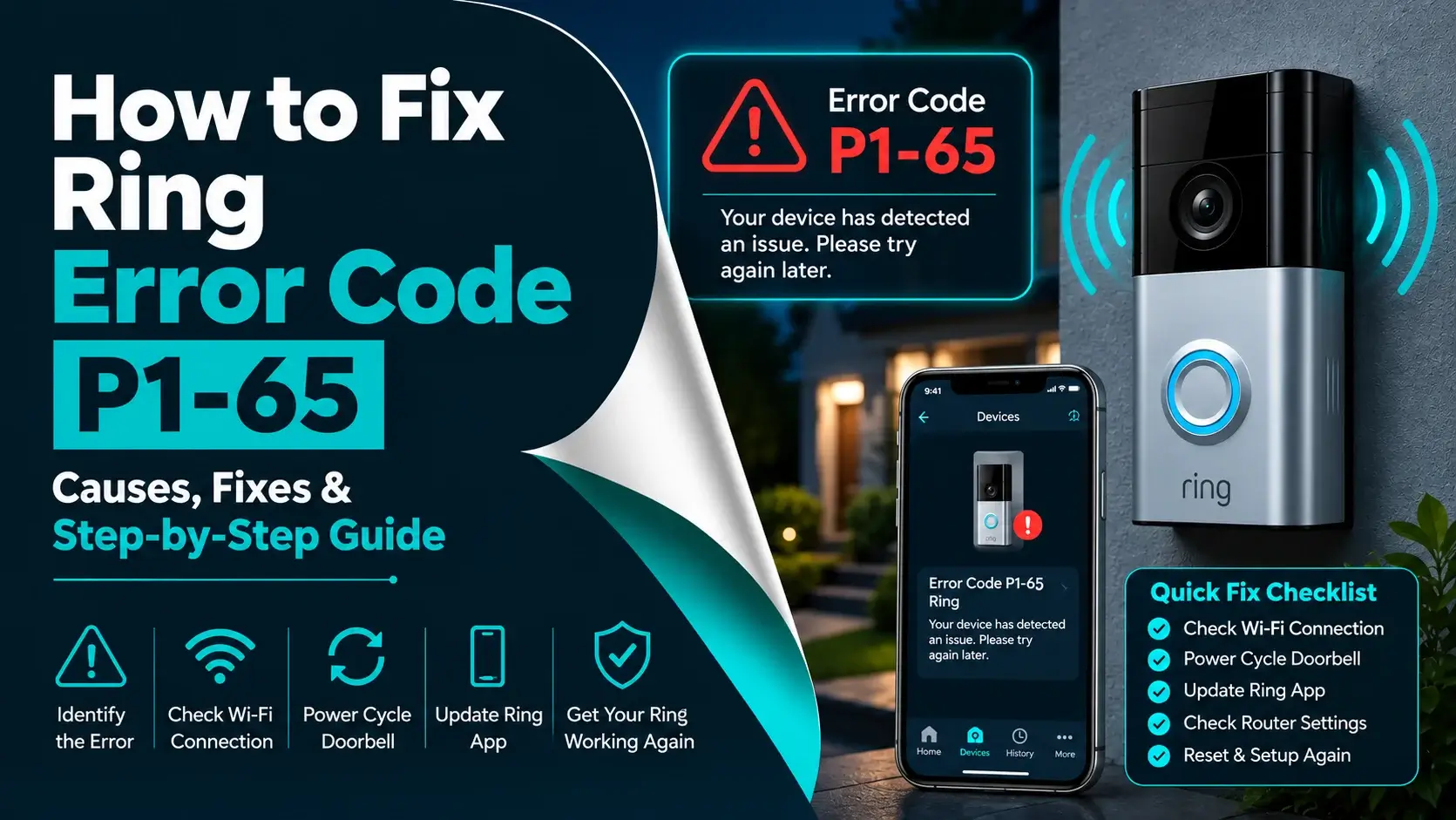
Did you just see Ring error code P1-65 on your Ring device?
Don’t worry…
Ring devices usually face errors, and it is one of them. You installed a Ring device in your home or office to keep you stress-free, but a small error in the device can create a big problem for you.
Ring devices are made to keep your home safe and provide you with good-quality video monitoring. But no matter how perfectly your device works, it will someday face errors like Error code P1-65 on Ring.
If you just noticed a Ring error code P1-65, it may have started thinking that the Ring device is broken. Relax… Your device is not broken; it has just lost its connection with the Wi-Fi.
Here’s the best part: You can easily fix the error by following simple troubleshooting steps that can be done at home without any help from professionals.
Let’s start with some basics and then talk about the error and its fixes in detail.
What is Ring error code P1-65?
To fix error code P1-65 on Ring, it is very important to know what you are about to resolve and why it happens. If you know about the error and why it happens, you will find the best way to fix it and get your Ring device back normal.
A Ring error code P1-65 means:
- Live video will not load, so you will not see video from anywhere.
- Video alerts will stop, and you will not receive any notifications.
- Ring cameras will not record or save recordings.
- Ring doorbell will not ring properly whenever you have a visitor.
- The battery can drain faster than usual, and your device can shut down too often.
Let’s discuss the common reasons behind Ring error code P1-65…
Common Reasons Causing Error code P1-65 on Ring
This is the most important step to identify the root cause behind the Ring error code P1-65. You should know what is causing it so you can resolve it easily.
There can be one reason behind it or many reasons behind it, such as:
- The ring device is placed far from the router.
- Entering incorrect Wi-Fi password.
- The ring device is connected to a 5GHz network instead of 2.4GHz network.
- Having an uncharged battery.
- Temporary glitch in the router.
- Many devices connected to one Wi-Fi network.
- Using VPN or firmware blocks during setup.
Let’s now move to the main part. Below are troubleshooting steps in detail after knowing the real reasons behind the Ring error P1-65.
Methods to Fix Ring Error Code P1-65
In this part, you will get to know how to solve the error easily step by step. Many of the best quick and verified fixes are below that will help you resolve the error:




1. Place the router in right place
If you are placing your Ring device far from the router, your network will be dropping again and again, which can cause Ring error P1-65.
You have to go through each important points:
- Keep the device closer to the router.
- Place the router within 3-5 feet from the device.
- Avoid any blockage between the device and the router.
2. Use correct Wi-Fi password and details
Entering incorrect Wi-Fi details is another big reason behind Ring Error code P1-65. You need to always check the Wi-Fi password and details twice before entering it.
- Ensure you entered the right Wi-Fi password and details.
- Look for the Caps Lock.
- Use the correct Ring account
- Re-enter the Wi-Fi password and details for confirmation.
3. Verify your Wi-Fi network band
Using the wrong network connection can be one of the most common reasons that can cause an error. You need to use the correct network band before logging into the Ring device.
– Correct the network connection by doing simple steps:
- Use the correct 2.4GHz network band.
- Switch to 2.4GHz network band if connected to 5GHz network.
- Disable 5GHz and create a new 2.4GHz network if your device is on both networks.
4. Charge the device battery full
A low battery can stop your Ring device from working properly. You have to keep the battery fully charged to stop your Ring device and app from facing errors.
– Consider these steps to fully charge the Ring device battery:
- Plug the Ring device into the charge through the cable.
- Charge the device battery for at least 3 hours.
- Make sure the battery is fully charged.
5. Restart the router
Sometimes a glitch in the router can cause network dropping and fill the cache in the device that stops the Ring device from working.
– Simple steps to restart the router:
- Remove all the Ethernet cables and Wi-Fi modem.
- Wait for 30 seconds.
- Plug the Ethernet cables back in.
- Wait for LED lights to be stable.
- Reconnect the power cables and connect the Ring device again.
6. Turn off VPN and ad blockers
You may have turned on VPN and ad blockers, turn it off right now. If VPN and ad blockers are on, it can stop the communication between Ring devices with the Ring servers.
– Steps below to turn off VPN and ad blockers:
- Power off the VPN.
- Disable ad blockers if you are using it.
- Reconnect the Ring device again with Wi-Fi.
7. Reset and re-add the Ring device
If the Ring device is not working after any troubleshooting steps, you have to completely reset the device and re-add it as a new one.
– Adding the device again after resetting, try these fixes:
- Find the reset button and hold it.
- Press it for 20-25 seconds until reset is done.
- When you see a light, open the Ring app, click on add device.
- Follow all the onscreen information to re-add the device.
Tips to Prevent Ring devices from error P1-65
When you completely fix your Ring device from error P1-65, you never want to see the error again. You can easily protect Ring devices from error code P1-65 in the future, as no one wants to see these errors on their devices again.
– Some of the Best Tips that you have to follow:
- Always keep your Ring device fully charged.
- Place your Ring device close to the router.
- Use only 2.4GHz network connection.
- Enter the correct Wi-Fi account and details during logging in.
- Double-check all the passwords and details.
- Turn off VPN and ad blockers during the Ring setup.
Final Words
When you notice Ring Error code P1-65 on your device, it does not mean that the device is broken. It just means your device is losing connection with Wi-Fi properly. Fix it by doing all the above-mentioned quick steps carefully.
When you need a quick fix, try putting the router in the correct place, enter the correct password, use the correct 2.4GHz network connection, fully charge the battery, and turn off VPN during Ring setup.