


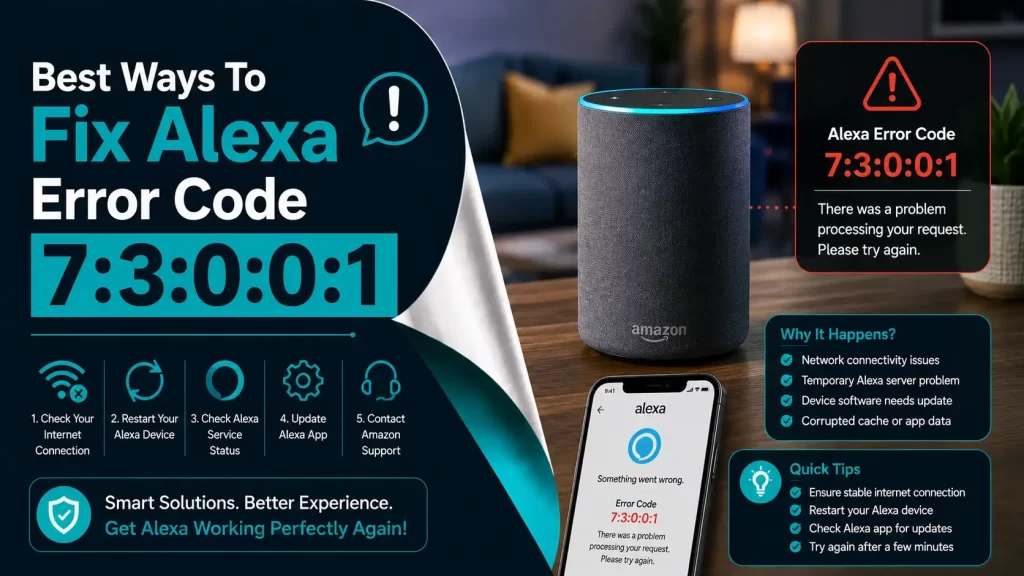
Hey! If you are searching for the methods to fix Alexa Error Code 7:3:0:0:1, you have come to the right place. This error can appear when you are trying to connect your Alexa-enabled device to a Wi-Fi network, and it can prevent Alexa from completing the setup or connecting to the internet.
Before fixing this error we would like to inform you that the 73001 error on the Alexa is appearing is not a very big problem. Nowadays as everyone has Alexa in their homes so this problem is very common for the users.
This error usually occurs when you connect your Alexa device with the Wi-Fi router. But don’t worry, we will guide you for the best ways to fix the Alexa error code 7:3:0:0:1 quickly. You will very soon get out of this issue with the help of this fully instructive article.
What Does Alexa Error Code 7:3:0:0:1 Mean?
Alexa Error Code 7:3:0:0:1 generally indicates that your Alexa device is having trouble establishing or maintaining a connection with the Wi-Fi network during setup or reconnection.
The problem may occur when:
- Alexa cannot communicate properly with your wireless router.
- The Wi-Fi signal is weak.
- An incorrect Wi-Fi password has been entered.
- Your router is temporarily experiencing connectivity problems.
- The Alexa device is too far away from the router.
- Network settings are interfering with the Alexa setup process.
- The Alexa app or device software needs to be updated.
- Your router has reached its device limit or is experiencing configuration issues.
Before assuming that your Alexa device is defective, it is worth troubleshooting the network connection first.
Reasons Causing Alexa Error Code 7:3:0:0:1
So, now we will share some reasons causing this error to you. Also, self-awareness is very important. Hope you will take care of the below-mentioned points from the next time so that you will not face this problem again. Have a look below…
1. Weak or Unstable Wi-Fi Connection
A weak wireless signal is one of the first things you should check. If your Alexa device is located far from the router, the signal may not be strong enough to complete the connection. Walls, doors, furniture, appliances, and other electronic equipment can also interfere with wireless communication.
2. Incorrect Wi-Fi Password
If you enter the wrong Wi-Fi password during Alexa setup, the device will not be able to join your network. Remember that Wi-Fi passwords are case-sensitive. A single incorrect character can prevent the connection.
3. Router or Internet Problems
Sometimes the problem isn’t with Alexa at all. Your router may have temporarily lost its internet connection or may need to be restarted. If other devices connected to the same Wi-Fi network are also experiencing internet problems, troubleshoot your router and internet connection first.
4. Alexa Is Too Far From the Router
Distance can affect Wi-Fi performance. During setup, it is a good idea to place the Alexa device relatively close to your router. Once the device has connected successfully, you can move it to its normal location.
5. Network Congestion
If many smartphones, computers, smart TVs, cameras, speakers, and other smart-home devices are connected to the same network, the router may become congested.
Temporarily disconnecting unnecessary devices can help determine whether network congestion is contributing to the problem.
6. Router Configuration Issues
Certain router settings can interfere with smart-home devices. For example, guest networks, device isolation, access-control settings, or unusual wireless configurations can prevent Alexa from communicating correctly with the network.
7. Temporary Software or Setup Glitch
A temporary problem with the Alexa app, device, or network connection can sometimes cause the setup process to fail.
Restarting the app, Alexa device, and router can often clear these temporary problems.
Can You Achieve In Resolving This Error On Your Own?
Without any doubt yes… It is quite an easy and simple task to fix this error, again and again, disturbing you while connecting the Alexa with a network connection.
The effective steps are mentioned in the below-stated article. All you have to do is to follow the instructions properly as mentioned in the below section.
How To Fix Alexa Error Code 7:3:0:0:1?
Now we are going to share some steps with you that are going really going to take you out from the Alexa problems.
So, are you fully confident? Or, ready to resolve this error on your own? Great, just believe in yourself and without wasting more time properly perform the steps stated below.
1. Check Your Internet Connection
Before changing any Alexa settings, check whether your internet connection is working properly. Connect your phone or computer to the same Wi-Fi network and open a few websites or apps.
If the internet is slow or unavailable:
- Check whether your modem/router shows an internet connection.
- Restart your router.
- Wait for the router to reconnect to the internet.
- Connect your phone to Wi-Fi again.
- Try setting up Alexa once more.
If other devices cannot access the internet either, contact your internet service provider if restarting the equipment does not resolve the problem.
2. Restart Your Alexa Device
A simple restart can clear temporary software and connectivity problems. To restart Alexa:
- Disconnect the Alexa device from its power source.
- Wait approximately 30 seconds.
- Plug the device back into the power outlet.
- Allow it to fully start.
- Try connecting it to Wi-Fi again.
Avoid repeatedly attempting setup while the device is still starting.
3. Restart Your Wi-Fi Router
Restarting the router is another important troubleshooting step.
- Turn off or unplug your router.
- Wait around 30 seconds.
- Turn the router back on.
- Wait several minutes for the Wi-Fi network to become available.
- Connect your phone to the network.
- Try setting up Alexa again.
If the router has separate modem and router units, you may need to restart both devices.
4. Verify the Wi-Fi Password
Double-check the password before attempting to connect Alexa. For example, make sure you are not accidentally entering a password with an extra space or confusing a number with a letter.
If you recently changed your Wi-Fi password, Alexa may still have the old network credentials stored. In that situation, remove or update the network connection through the Alexa app and configure the device again.
Pay attention to:
- Uppercase and lowercase letters.
- Numbers.
- Special characters.
- Spaces.
- Similar-looking characters.
5. Move Alexa Closer to the Router
During setup, place your Alexa device close to the wireless router. Ideally, keep the device away from:
- Thick walls.
- Large metal objects.
- Microwaves.
- Bluetooth-heavy environments.
- Other sources of wireless interference.
- Enclosed cabinets.
Once Alexa connects successfully, move it back to its intended location and check whether the connection remains stable.
6. Check Whether Other Devices Are Connected
Try temporarily disconnecting devices that are not currently needed. For example, you can disconnect unused smart-home devices, streaming devices, tablets, or computers from the network. Then try connecting Alexa again.
If Alexa connects after reducing the number of connected devices, your router may be experiencing congestion or reaching its connection limit.
7. Make Sure You Are Using the Correct Wi-Fi Network
If multiple Wi-Fi networks are available, make sure you are selecting the correct one. For example, your home may have:
- A primary Wi-Fi network.
- A guest network.
- A 2.4 GHz network.
- A 5 GHz network.
- A Wi-Fi extender network.
If Alexa setup fails on one network, checking your router configuration and trying an appropriate primary network can help.
For smart-home setup problems, the router’s compatibility and wireless configuration are important factors. If your router automatically combines multiple wireless bands under one network name, follow the router manufacturer’s recommended setup procedure.
8. Restart the Alexa App
The Alexa app can occasionally experience a temporary glitch during device setup. Try the following:
- Close the Alexa app completely.
- Reopen the app.
- Make sure your phone is connected to the correct Wi-Fi network.
- Sign in if necessary.
- Start the Alexa device setup again.
If the problem continues, check whether an update is available for the Alexa app.
9. Update the Alexa App
Using an outdated version of the Alexa app can potentially cause setup or compatibility problems. Open your device’s app store and check for an available update.
After updating:
- Restart the Alexa app.
- Confirm that your phone is connected to Wi-Fi.
- Start the Alexa setup process again.
- Check whether Error Code 7:3:0:0:1 has disappeared.
10. Check Your Router Settings
If Alexa still cannot connect, examine your router configuration. Pay particular attention to settings related to:
- Guest networks.
- Access control.
- MAC filtering.
- Device isolation.
- Parental controls.
- Wireless security.
- Maximum connected devices.
- DHCP settings.
If you recently changed router settings, temporarily reversing those changes can help identify the cause. Do not make advanced router changes unless you understand their purpose. If necessary, contact your internet service provider or router manufacturer for assistance.
11. Try Another Network
Testing Alexa on another compatible Wi-Fi network can help determine whether the problem is caused by the Alexa device or your home network. For example, if you have access to another trusted network, try connecting the device temporarily.
If Alexa connects successfully to another network, the original router or Wi-Fi configuration is more likely to be responsible. If Alexa fails to connect to multiple networks, the issue may be related to the device, app, or setup process.
12. Reset Alexa and Set It Up Again
If none of the previous solutions work, resetting the Alexa device and completing the setup process again may help. The exact reset procedure varies depending on the Alexa device model, so use the instructions intended for your specific model.
Before resetting:
- Make sure you know your Amazon account credentials.
- Confirm that you know your Wi-Fi password.
- Understand that resetting the device may remove existing device settings.
- Be prepared to configure the device again.
After resetting, open the Alexa app and follow the normal device setup process.
Additional Tips to Prevent Alexa Connection Errors
Once you successfully connect Alexa, a few simple practices can reduce the chance of future connectivity problems.
- Keep Alexa Within a Good Wi-Fi Range: Avoid placing Alexa in an area where the wireless signal is consistently weak.
- Keep Router Firmware Updated: Check your router manufacturer’s instructions for firmware updates. Updated router software can improve stability, security, and compatibility.
- Avoid Unnecessary Network Congestion: If your network has a large number of connected devices, consider whether your router is capable of handling the workload.
- Keep the Alexa App Updated: Regularly updating the Alexa app helps ensure that you are using the latest available version.
- Avoid Frequently Changing Wi-Fi Credentials: Changing your wireless network name or password can require smart-home devices to be configured again.
Final Thoughts
Alexa Error Code 7:3:0:0:1 can be frustrating, particularly when it appears during the Wi-Fi setup process. However, it does not necessarily mean that your Alexa device is defective.
Start with the easiest solutions: check your internet connection, restart the router and Alexa device, verify the Wi-Fi password, move Alexa closer to the router, and restart or update the Alexa app.
If the problem continues, investigate your router configuration and try connecting Alexa to another trusted network. As a final step, reset the device and complete the setup process again using the instructions for your specific Alexa model.
By following these troubleshooting methods carefully, you should be able to identify whether the problem is related to the Wi-Fi network, router, Alexa app, or the device itself.