


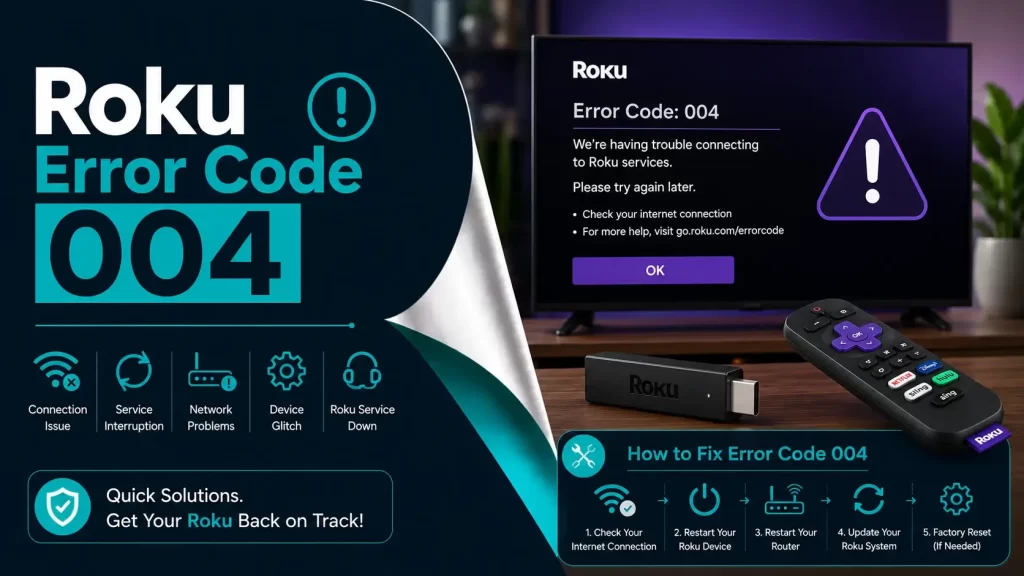
You know that sinking feeling when you’re all set for movie night; lights off, snacks ready, your favorite show lined up, and your Roku screen suddenly flashes “Error Code 004”? Yeah. That moment when excitement turns into “Oh no, not today.”
I’ve been there, staring at the screen like it just personally betrayed me. The first time it happened, I had no clue what it meant. I thought maybe the device had crashed or my internet was gone. But after a bit of digging (and a lot of trial and error), I figured out what this error really means and how to fix it without losing your patience.
So, if you’re seeing Roku Error Code 004, take a deep breath. You’re not alone, and this guide is here to walk you through the fix, step by step.
What Exactly Is Roku Error Code 004?
Let’s start with the basics. Error Code 004 on Roku usually appears when the device tries to update its software but can’t connect properly to Roku’s servers. It’s like your Roku’s trying to make a phone call home, but the line keeps cutting out.
The screen typically says:
“Cannot update software. Error Code 004.”
This means something’s blocking Roku’s update process. It could be your Wi-Fi, your router settings, or sometimes, the issue is on Roku’s side; their servers might be temporarily down.
In short, Roku wants to update, but it can’t finish the job because something in the connection chain isn’t working smoothly.
Why Does Roku Error Code 004 Happen?
There’s no single reason for this error; it’s a mix of possible culprits. Here are the usual suspects:
1. Your Internet Connection Is Acting Up
Roku requires a stable and reliable internet connection to communicate with its servers. If your Wi-Fi drops for even a second or if it’s just slow, the update can fail.
2. Your Router’s Having a Bad Day
Routers can cause more problems than most people realize. Outdated firmware, incorrect DNS settings, or general lag can interrupt Roku’s communication with the update server.
3. Temporary Roku Server Issues
Sometimes, it’s not you; it’s them. Roku’s servers can become overloaded or enter maintenance mode. When that happens, no amount of restarting will fix it until they’re back online.
4. VPN or Proxy Confusion
If you’re using a VPN (say, to watch U.S. content while you’re in India), it might confuse Roku’s update check. Roku likes direct, local connections.
5. Old Roku Software
If your device hasn’t updated in ages, it might be stuck between versions and struggling to verify the new update file.
How to Fix Roku Error Code 004 (Step-by-Step)?
Alright, let’s get practical. Here’s what actually works; not tech jargon, just straightforward fixes that real users have tried and confirmed.
1. Restart Everything
Yep, the oldest trick in the book, but for a reason. Restarting clears temporary data, resets connections, and gives your devices a clean slate.
- Turn off your Roku and unplug it.
- Unplug your router and modem, too.
- Wait for at least 30 seconds (count slowly, it matters).
- Plug your router and modem back in first, then your Roku.
- Try running the update again.
- Nine times out of ten, this simple restart clears error 004.
2. Check Your Wi-Fi Connection Strength
If restarting didn’t help, your Wi-Fi might be the culprit. Roku hates weak signals.
- On Roku, go to Settings – Network – Check connection.
- If it says your connection is poor or unstable, move your Roku closer to the router.
- Disconnect other devices hogging bandwidth.
- If possible, switch to a wired Ethernet connection; it’s way more stable.
- For reference, Roku needs at least:
- 3 Mbps for standard definition
- 5–10 Mbps for HD or 4K
If your speed is below that, your updates and streams will constantly struggle.
3. Try a Manual Update Using a USB Drive
If your Roku can’t get the update online, you can install it manually. It’s easier than it sounds.
- On a computer, visit Roku’s official update page.
- Enter your Roku model and download the latest software.
- Copy the file to a USB drive.
- Plug the USB into your Roku.
- Follow the instructions on-screen to update manually.
This method completely skips the network step, which is great if the issue is purely connection-related.
4. Change Your DNS Settings
Okay, this one’s a little technical, but not scary. Your DNS (Domain Name System) acts like the address book for the internet. If your DNS is slow or misconfigured, Roku might not “find” its update servers.
You can switch to a reliable public DNS instead:
- Google DNS: 8.8.8.8 and 8.8.4.4
- Cloudflare DNS: 1.1.1.1 and 1.0.0.1
You’ll find DNS settings in your router’s admin panel. Once you update them, restart the router and Roku, and then try the update again.
This fix alone has solved the 004 error for tons of users, me included.
5. Disable VPN or Proxy (If You’re Using One)
I love VPNs for privacy and region-specific shows, but they can mess with Roku updates.
- Turn off your VPN or proxy connection.
- Restart Roku.
- Attempt the update again.
Once it completes, you can turn the VPN back on for streaming.
6. Do a Factory Reset (If All Else Fails)
If you’ve tried everything and that stubborn error won’t budge, it might be time for a full reset.
Warning: This erases all your settings, accounts, and installed channels; so only use it as a last resort.
- Go to Settings – System – Advanced system settings – Factory reset.
- Enter the code shown on your screen.
- Wait while Roku resets itself.
- Reconnect to your Wi-Fi and set everything up again.
Once done, your Roku will be like new and should update without issues.
7. Contact Roku Support
Still stuck? Don’t stress it. Roku’s support team can help pinpoint the issue.
Visit support.roku.com and send them:
- Your Roku model
- The exact Roku error code 004
- Your internet service provider
- What steps have you already tried?
They’ll walk you through some deeper troubleshooting or confirm if the issue’s on Roku’s side.
How to Keep Roku Error-Free?
After fixing this once, trust me, you’ll want to make sure it never happens again.
Here are some tips I’ve learned that keep Roku (and your Wi-Fi) happy:
- Don’t unplug Roku during an update. It might seem frozen, but let it finish.
- Restart your router once in a while. It clears cached data and prevents connection drops.
- Keep your router firmware updated. Manufacturers release fixes that can help with stability.
- Avoid using VPNs during updates. Do your updates on a direct connection.
- Run regular internet speed checks. Slow or unstable connections cause most streaming errors.
Roku devices are pretty solid overall, but like all smart gadgets, they need a little maintenance.
Final Thoughts
Roku Error Code 004 might look intimidating, but it’s really just a communication glitch between your device and the update server. Once you know what’s behind it and how to fix it ; the problem becomes much less scary.
For most people, restarting their devices, checking their Wi-Fi, or updating DNS settings does the trick. And if you’ve been struggling for hours, remember: sometimes the problem isn’t even on your end.
So, take a breath, follow the steps above, and you’ll be back to streaming before you finish that coffee.