


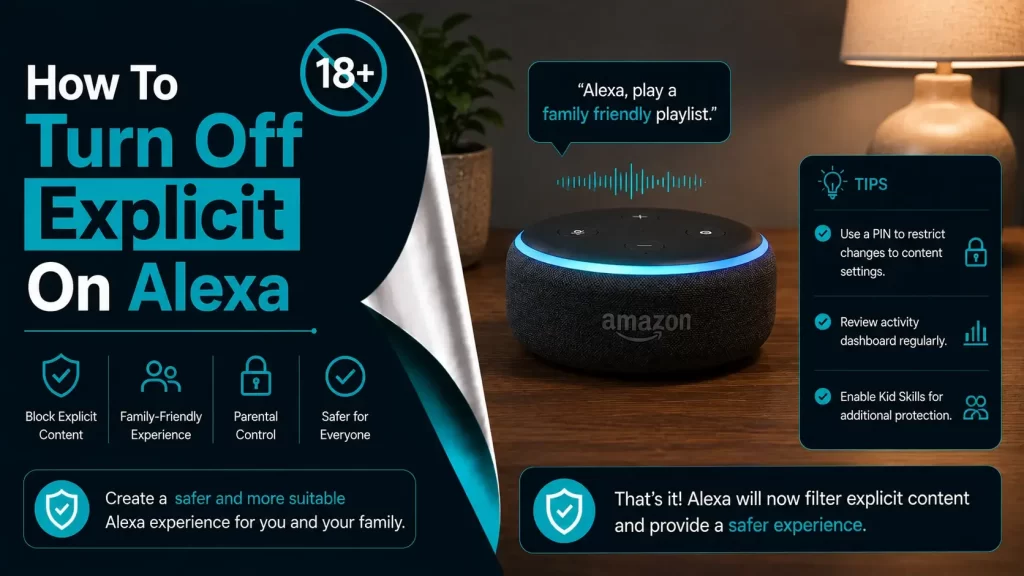
In the digital interconnected world, proper management of explicit content on Alexa is important for households. Are you an unmatured guy? Or don’t you want to prefer mature content? If so, in this guide, you will be familiar with the step-by-step procedure related to how to turn off explicit on Alexa devices.
The most interesting thing is that the methods given in this post will certainly ensure a safe and family-friendly environment. So, why are you wasting your time? Realize the value of your precious time and walk through the content of this post.
Are you hunting for a reliable & detailed procedure to turn off explicit on Alexa devices? We have got you covered. So, without beating about the bush, let’s have an all-seeing-eye into this post!
Keep reading to know more.
What Do You Mean By Explicit Of Alexa?
Typically, “explicit” on Alexa refers to the content that contains –
- Explicit language
- Themes
- Songs with strong language
- Mature-rated audiobooks
One thing that you need to keep in mind is that the material it offers is not suitable for all audiences. The most interesting part is that Alexa provides you with a range of features. It will help you manage and filter explicit content.
Alexa is useful for households with children or users. They are the ones who prefer to avoid such material. Once you initiate using these features and settings, you can customize Alexa.
It can be done as per the needs and preferences of your household. This way, you can confirm not merely a safe but also a comfortable listening experience for everyone.
Key Process To Turn Off Explicit On Alexa
In this section, we have outlined all the steps involved to enable you to turn off explicit on Alexa. Let’s have an overview of all the steps given below –
1. Enable Explicit Language Filter for Music
Simply put, the explicit language prevents Alexa from playing songs with explicit lyrics. The best part of this filter is that it works across all music services that are already connected to your Alexa device. Follow the below steps to Enable the Explicit Language Filter.
– Open the Alexa App
- Initially, download and install the Alexa app from the App Store for iOS devices or Google Play Store for Android devices if you haven’t already.
- Now, open the app and log in with your Amazon account credentials.
– Navigate to Settings
- In this step, tap on the Menu icon. It mostly appears as three horizontal lines in the top-left corner of the screen.
- After that, select Settings from the menu options.
– Select Music & Podcasts
- This step is all about scrolling down and taping on Music & Podcasts in the Settings menu.
– Choose Your Music Service
- Now, select the music service you use. These services can be – Amazon Music, Spotify, and Apple Music.
– Enable the Explicit Filter
- Next, look for the Explicit Language Filter option.
- Thereafter, toggle the switch to On.
- Once you enable it, the filter will automatically block explicit songs that users can play on your Alexa-enabled devices.
2. Use Amazon Kids (formerly FreeTime)
The interesting fact about Amazon Kids is that it provides children with a safe environment. It prohibits access to explicit content and other mature materials.
Undoubtedly, this feature is useful for families who have young children. Follow the below steps to Enable Amazon Kids.
– Open the Alexa App
- At the beginning of the process, launch the Alexa app on your smartphone.
– Go to Devices
- In the next step, tap on the Devices icon at the bottom of the screen.
– Select the Device
- Now, choose the Alexa device you want to enable Amazon Kids on.
– Enable Amazon Kids
- Later on, hit Amazon Kids.
- Follow the on-screen instructions to set it up.
- There will also be a requirement to create a profile for your child if you haven’t done so already.
– Configure Parental Controls
- Last but not least, you need to customize the settings to restrict explicit content and set usage limits.
3. Create Voice Profiles
Voice profiles allow Alexa to recognize different users and provide personalized settings, including content restrictions for explicit material. Follow the below steps to Create and Manage Voice Profiles.
– Open the Alexa App
- In the first step, launch the Alexa app on your smartphone.
– Navigate to Settings
- Now, tap on the Menu icon and choose Settings.
– Manage Voice Profiles
- Firstly, tap on Account Settings.
- Next, you are required to select Recognized Voices.
– Add a New Voice
- Further, it will be worth following the on-screen instructions to add a new voice profile.
- It is essential to have the individual read a series of phrases. This way, you can teach Alexa their voice.
– Customize Content Settings
- Once you are done with the process of creating a voice profile, you can proceed to customize the content settings. It will be helpful to you to block explicit content.
4. Set Up Alexa Routines
Alexa Routines helps you automate tasks. It can involve commands to prohibit explicit content during a specific period of the day. Follow the steps to Create a Routine.
– Open the Alexa App
- In the first step, you have to launch the Alexa app on your smartphone.
– Go to Routines
- Tap on the More icon that looks like three horizontal lines. After that, select Routines.
– Create a New Routine
- In the next step, tap the + icon to create a new routine.
– Set the Trigger
- Now, select a trigger for the routine. It may be a specific time of day. Or there is the possibility of a voice command also.
– Add Actions
- Tap Add Action.
- Choose Music.
- Now, select the music service.
- You also need to ensure that the explicit filter is already enabled for that service.
- On the other hand, as an alternative option, you can add actions to play specific playlists. You can also think about stations that do not contain explicit content.
– Save the Routine
- Last but not least, name the routine and tap Save.
5. Manually Manage Skills and Apps
It is probable that a few Alexa skills and apps contain explicit content. Managing these apps manually can help you ensure a safe environment. Follow the below steps to Manage Skills and Apps.
– Open the Alexa App
- Firstly, launch the Alexa app on your smartphone.
– Go to Skills & Games
- Now, tap on the Menu icon.
- Select Skills & Games.
– Review Installed Skills
- In the next step, review the list of installed skills.
- You can think about disabling any skill that may contain explicit content.
– Disable Explicit Skills
- Finally, tap on the skill.
- Choose Disable to remove it from your Alexa device.
6. Use Alexa’s Drop-In and Announcements Features with Caution
Generally speaking, Drop-In and Announcements allow you to have direct communication between Alexa devices. It can sometimes include unfiltered content.
It will be beneficial for you to utilize these features carefully. In addition to this, you can also prevent using them, if it is required. Follow the below steps to fix it.
– Open the Alexa App
- First of all, launch the Alexa app on your smartphone.
– Go to Communications
- In the next step, tap on the Communicate icon at the bottom of the screen.
– Manage Drop-In
- Now, select Drop-In and choose which contacts are allowed to use this feature.
- After that, you can think about restricting or disabling “Drop-In” if needed.
– Manage Announcements
- It will be better for you to customize who can send and receive announcements on your devices.
7. Monitor Usage and Set Time Limits
If you monitor Alexa usage and set time regularly, it can help you to have control over explicit content. Follow below steps to Monitor and Set Time Limits.
– Open the Alexa App
- At the beginning of the process, launch the Alexa app on your smartphone.
– Go to Device Settings
- Now, tap on the Devices icon.
- Choose the Alexa device.
– Check Usage History
- In the next step, review the usage history. It will be helpful to you in monitoring what content you have already accessed.
– Set Time Limits
- Finally, you can utilize the Amazon Kids settings. This way, you can set daily time limits for device usage.
8. Use External Parental Control Software
One of the best things about external parental control software is that it helps you achieve an additional layer of security. It ensures explicit content is filtered across all devices including – Alexa. Follow below steps to Set Up External Parental Controls.
– Choose a Parental Control Software
- Select a reputable parental control software that supports smart home devices.
– Install the Software
- Follow the installation instructions provided by the software manufacturer.
– Configure Settings
- Set up filters to block explicit content and monitor device usage.
– Link to Alexa Devices
- Ensure the software is linked to your Alexa devices and properly configured to filter content.
Wrapping Up
To be precise, managing explicit content on Alexa devices is essential for establishing a safe and family-friendly environment. Once you go through this post, you will realize how easy it is to manage explicit content on Alexa devices.
Apart from this, you will be able to have proper control so that you can even restrict it more effectively. As soon as you proceed to follow these detailed steps, it will help you ensure that your Alexa experience remains extremely enjoyable.
Furthermore, you can confirm that Alexa is appropriate for all members of your household. In limited words, this blog will let you know how to turn off explicit on Alexa.