


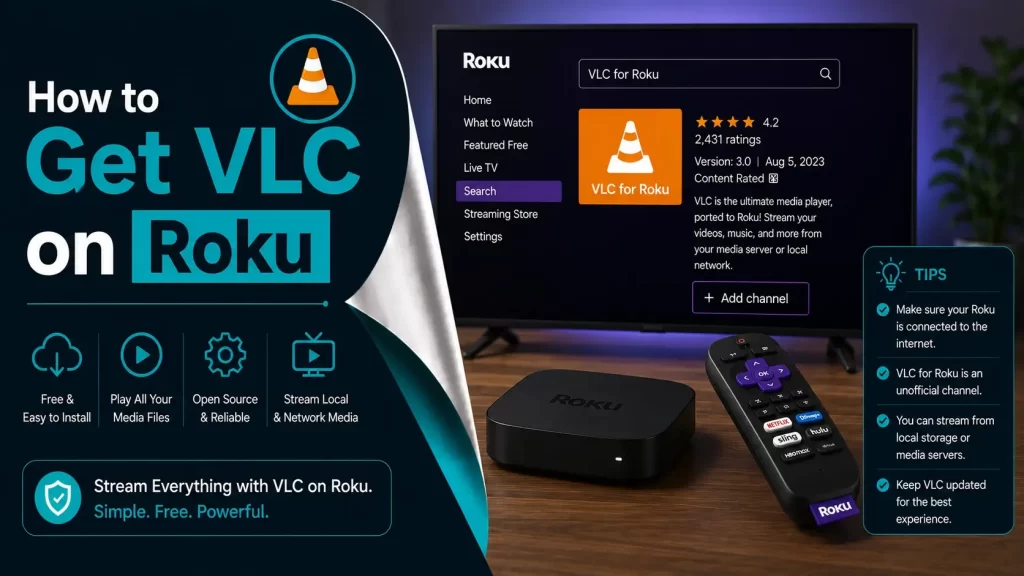
VLC is truly a top-notch and free-of-cost media player. It allows you to play DVDs and various file types. These file types are – MKV and live streams. You can easily use it on your own regardless of its version namely – Windows, Max, iOS, Android, Apple TV, and more. But the main matter is how to get VLC on Roku.
Worry not!!
Once you delve into the information given in this post, you will have an eye on various ways including – Screen casting or Screen mirroring features. It will be helpful to cast from any device. Have you looked for a way to get VLC for Roku or not? You need not scratch your head for this issue. You can surely have a sigh of relief, as we have got you covered.
What do you need to install VLC on Roku? Well, it is all about visiting the Roku app channels or following a few additional ways that will allow you to achieve the target. Why are you delaying?
Let’s move forward and dig a little deeper into the information given below…
What Do You Know About VLC and Roku?
Simply put the VLC Media Player is a well-recognized, free, and open-source media player. It is supportive of a wide range of audio and video formats as well.
In addition to this, this is prominent because of the versatility it has as well as its capability to play all media files. On the other hand, the Roku is a streaming device that enables you to access various streaming services.
These services are namely – Netflix, Hulu, Amazon Prime, and many others. Honestly speaking, Roku does not support installing third-party apps directly. These apps are namely – VLC. On the contrary, it supports casting or screen mirroring.
Why Choose VLC on Roku?
Before diving into the steps, let’s understand why many Roku users want VLC:
- Supports All Formats – From MP4, MKV, AVI, to even rare file types, VLC plays them all.
- Completely Free – VLC is open-source and doesn’t require subscriptions.
- Subtitle Support – Easily load or sync subtitles with your media.
- Streaming Features – Cast local files from your devices to a bigger Roku screen.
- Cross-Platform – Works on Windows, Mac, Linux, Android, and iOS.
With these benefits, getting VLC on Roku becomes a must-have for anyone who wants maximum flexibility in streaming.
Can You Download VLC Directly on Roku?
Unfortunately, the answer is no. Roku’s Channel Store does not list VLC as an available channel. Roku operates on its own OS, and developers like VideoLAN (creators of VLC) haven’t made a native Roku app.
However, that doesn’t mean you can’t use it. By using casting or screen mirroring, you can still enjoy VLC on Roku without limitations.
Easy Ways to Stream VLC on Roku
Generally speaking, there are two key methods that are helpful to you to stream content from VLC to Roku. Both of these methods are mentioned below –
- Screen Mirroring: It is all about mirroring the screen either of your computer device or mobile device to the Roku.
- Casting: With the use of a few of the casting features available in some versions of VLC, you can stream directly to Roku.
- Mac with AirPlay: Mirror your Mac screen via AirPlay to watch VLC content on Roku.
- iPhone/iPad with AirPlay: Stream VLC from your iOS device to Roku using Apple’s Screen Mirroring option.
- Plex Media Server: Add VLC-supported files to Plex and stream them on Roku through the Plex app.
Method 1: Screen Mirroring
– For Windows
- Enable Screen Mirroring on Roku:
- Firstly, go to the Settings menu on your Roku Device.
- Now, select System.
- In the next step, choose Screen Mirroring.
- Last but not least, opt for Screen Mirroring Mode to Always Allow or Prompt.
- Enable Screen Mirroring on Windows:
- Initially, open the Action Center (It is usually located on the bottom-right corner of the screen).
Next, click on Connect. - After that, select your Roku device from the list.
- Thereafter, your Windows screen should now be mirrored to your Roku.
- Initially, open the Action Center (It is usually located on the bottom-right corner of the screen).
- Open VLC Media Player:
- In the very first step, launch VLC on your computer.
- Now, play the media file that you want to stream.
- Finally, the content will be mirrored on your Roku-connected TV.
– For Android
- Enable Screen Mirroring on Roku:
- First, navigate to the Settings menu on your Roku device.
- Now, choose System.
- In the following step, select Screen Mirroring.
- Lastly, select Screen Mirroring Mode as Always Allow or Prompt.
- Enable Screen Mirroring on Android:
- At the beginning of the process, go to Settings on your Android device.
- Now, select Connected Devices or Connection Preferences.
- In this step, choose Cast or Screen Mirroring.
- After that, select your Roku device from the list.
- Thereafter, your Android screen should now be mirrored to your Roku.
- Open VLC Media Player:
- Firstly, launch VLC on your Android device.
- Later on, play the media file you want to stream.
- Finally, the content will be mirrored on your Roku-connected TV.
Method 2: Casting from VLC
- Ensure Devices Are on the Same Network: In the first step, you are required to make sure both your VLC-running device and Roku are connected to the same Wi-Fi network.
- Open VLC Media Player: In the next step, you have to launch VLC on your computer or mobile device.
- Select Playback Device:
- For Desktop: On VLC, go to Playback > Renderer and choose your Roku device.
- For Mobile: On VLC, utilize the Cast button. This button is usually found in the media controls.
- Play Media File: In the beginning, start playing the media file on VLC. Next, make sure that the content is streamed to your Roku-connected TV.
Method 3: Get VLC on Roku Using Mac & AirPlay
If you’re a Mac user, AirPlay is your best option.
- Enable AirPlay on Roku: Go to Settings > Apple AirPlay and HomeKit and enable it.
- Connect Devices: Make sure both Mac and Roku are on the same Wi-Fi network.
- Use AirPlay:
- On your Mac, click the AirPlay icon in the menu bar.
- Select Roku from the list.
- Play VLC: Open VLC on your Mac, and the content will appear on Roku.
This makes VLC on Roku seamless for Mac users.
Method 4: Use iPhone/iPad with AirPlay
Apple users can also cast VLC using iPhone or iPad.
- Enable AirPlay on Roku from settings.
- Install VLC on iPhone/iPad from the App Store.
- Connect both devices to Wi-Fi.
- Use Screen Mirroring
- Open Control Center > Screen Mirroring.
- Select Roku.
- Play VLC Video – It will stream directly to your Roku.
Method 5: Get VLC on Roku Using Plex
If you don’t want to mirror your screen every time, Plex is a great alternative.
- Install Plex on PC or Mac and set up your media library.
- Add VLC-compatible files into Plex.
- Install Plex on Roku from the Channel Store.
- Log in and Stream – Your local content will now be available on Roku without mirroring.
While this isn’t directly VLC on Roku, it’s a reliable workaround.
Final Words
To be precise, now you will be able to install VLC on Roku. In addition to this, it will also become possible for you to stream a specific piece of content from VLC to Roku.
You can do it successfully with the proper usage of the screen monitoring feature. Furthermore, through casting, you can achieve success in attaining a viable alternative.
All you need to do is follow the steps outlined above. As an outcome, you can enjoy your media files on a larger screen with versatility. Besides, it will be possible for you to leverage the robust playback capabilities of VLC Media Player.
Frequently Asked Questions:
Can I Install VLC Directly on My Roku Device?
How Can I Stream VLC Content to My Roku?
- Screen Mirroring: In this step, you have to enable screen mirroring on both your Roku and the device. Later on, you can run VLC. Thereafter, mirror your device’s screen to Roku.
- Casting: This method allows you to use VLC’s casting feature. This feature is helpful in streaming the content directly to your Roku. As a result, you can ensure that both devices are on the same Wi-Fi network.
What Are the Requirements for Streaming VLC to Roku?
- Firstly, you should have a Roku device that is required to be supportive of screen monitoring or casting.
- Next, it is essential to have a computer device or a mobile with a VLC Media Player installed.
- Make sure that both the devices are connected to the same Wi-Fi network.
- Screen mirroring helped to cast capabilities on your VLC device.